![3DISC_Logo_RGB_tiny.png]](https://help.3disc.com/hs-fs/hubfs/3DISC_Logo_RGB_tiny.png?height=50&name=3DISC_Logo_RGB_tiny.png)
- 1. Go to 3DiscClinic™ Data Settings:
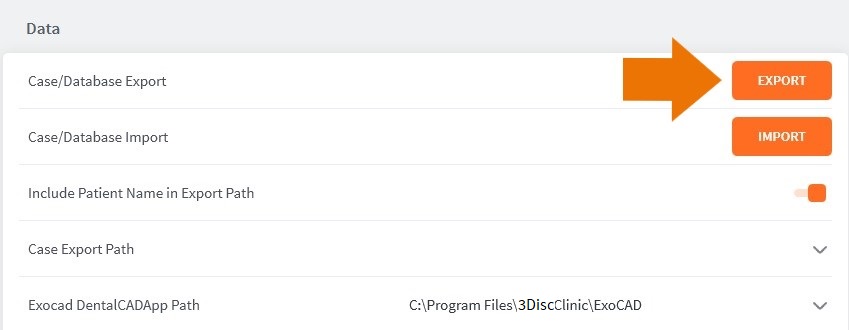
- 2. In Case/Database Export, click EXPORT.
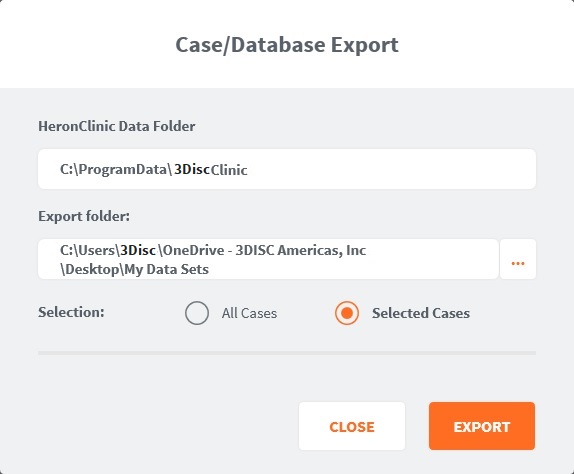
In the Case/Database Export dialog box:
- 3. Create a new Export folder to which the data can be exported.
- 4. Check All Cases or Selected Cases, and Click EXPORT.
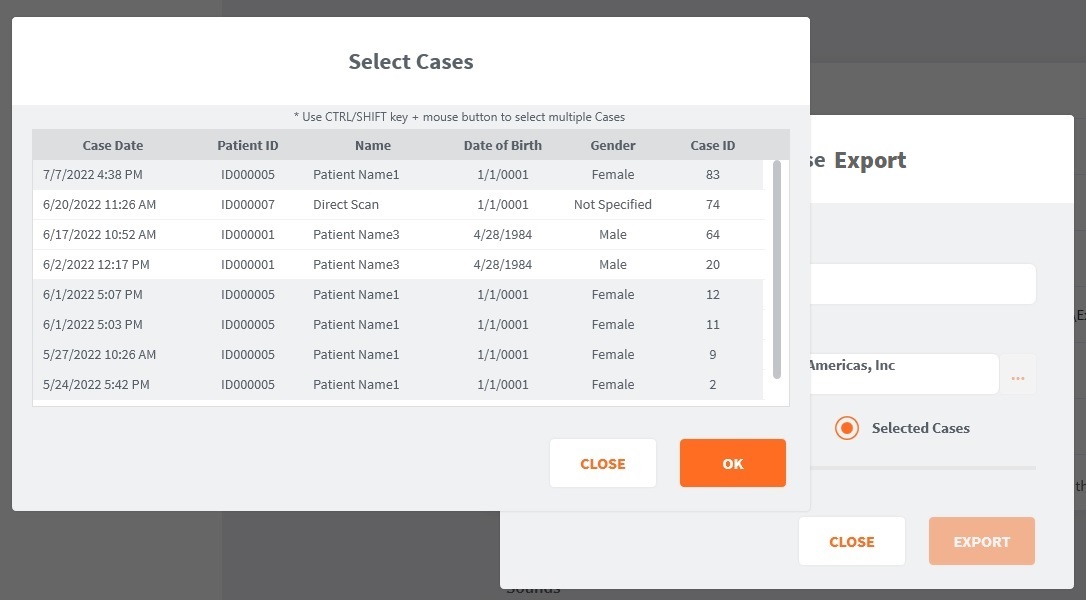
For selected cases, verify that the scan time and Case ID of the case(s) for export correspond to the information in Case Preview/Finalization.
- 5. Select the desired case(s), and click OK.
- 6. Click Export.