![3DISC_Logo_RGB_tiny.png]](https://help.3disc.com/hs-fs/hubfs/3DISC_Logo_RGB_tiny.png?height=50&name=3DISC_Logo_RGB_tiny.png)
In the 3DiscCloud™ Login window:
- 1. Click Create New Account.
This will send you to the 3DiscCloud™ platform's signup page, and invite you to create a new account:
-
2. In the dialog box, enter your account details — required fields are marked with an asterix (*).
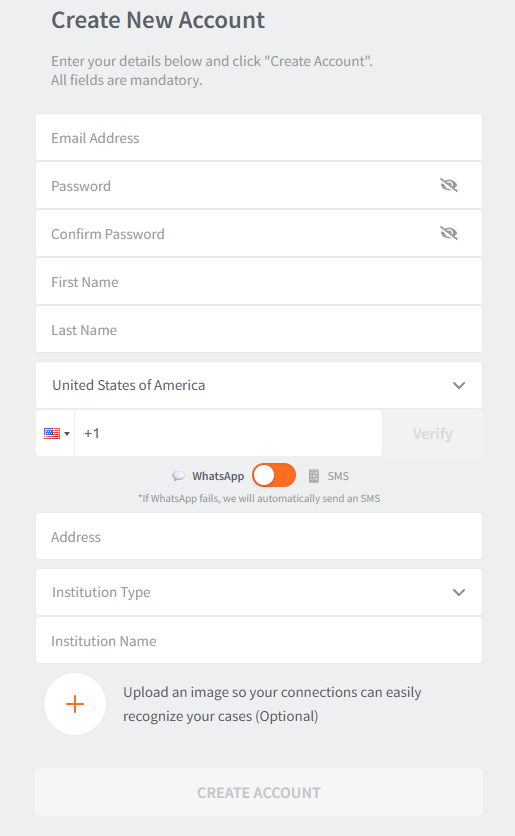
- 3. Enter a valid phone number and click “Verify.” If you don’t have WhatsApp to receive the verification code, switch the option to receive the code via SMS.
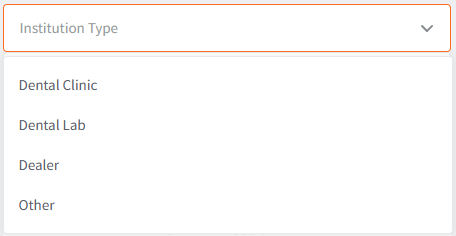
- 4. Make sure you specify the correct Dental Clinic or Dental Lab profile, as this will define user permissions for your account.
Profile Settings can be edited in 3DiscCloud™ User Settings.
-
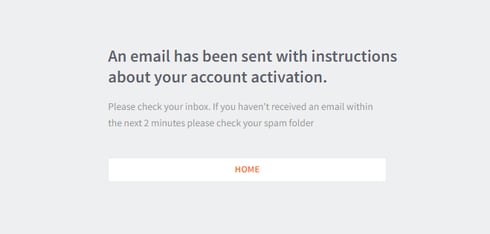
6. You will receive an email inviting you to activate your account.
-
7. Click the confirmation link to activate your 3DiscCloud™ account.
-
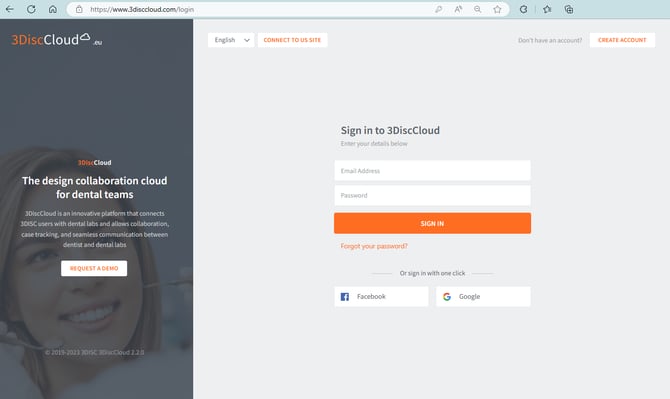
8. Click HOME to access the 3DiscCloud™ Login page.
-
9. Select a language in the scroll-down menu.
-
10. Enter your account email address and password to login to your 3DiscCloud™ account.