![3DISC_Logo_RGB_tiny.png]](https://help.3disc.com/hs-fs/hubfs/3DISC_Logo_RGB_tiny.png?height=50&name=3DISC_Logo_RGB_tiny.png)
Using the Quality Map©
 The Quality Map tool enables you to assess in real-time if enough data has been collected in the area of interest of the scan.
To access the Quality Map:
- 1. Click on the Quality Map icon.
The digital 3D model will indicate in red those areas where insufficient data has been obtained.
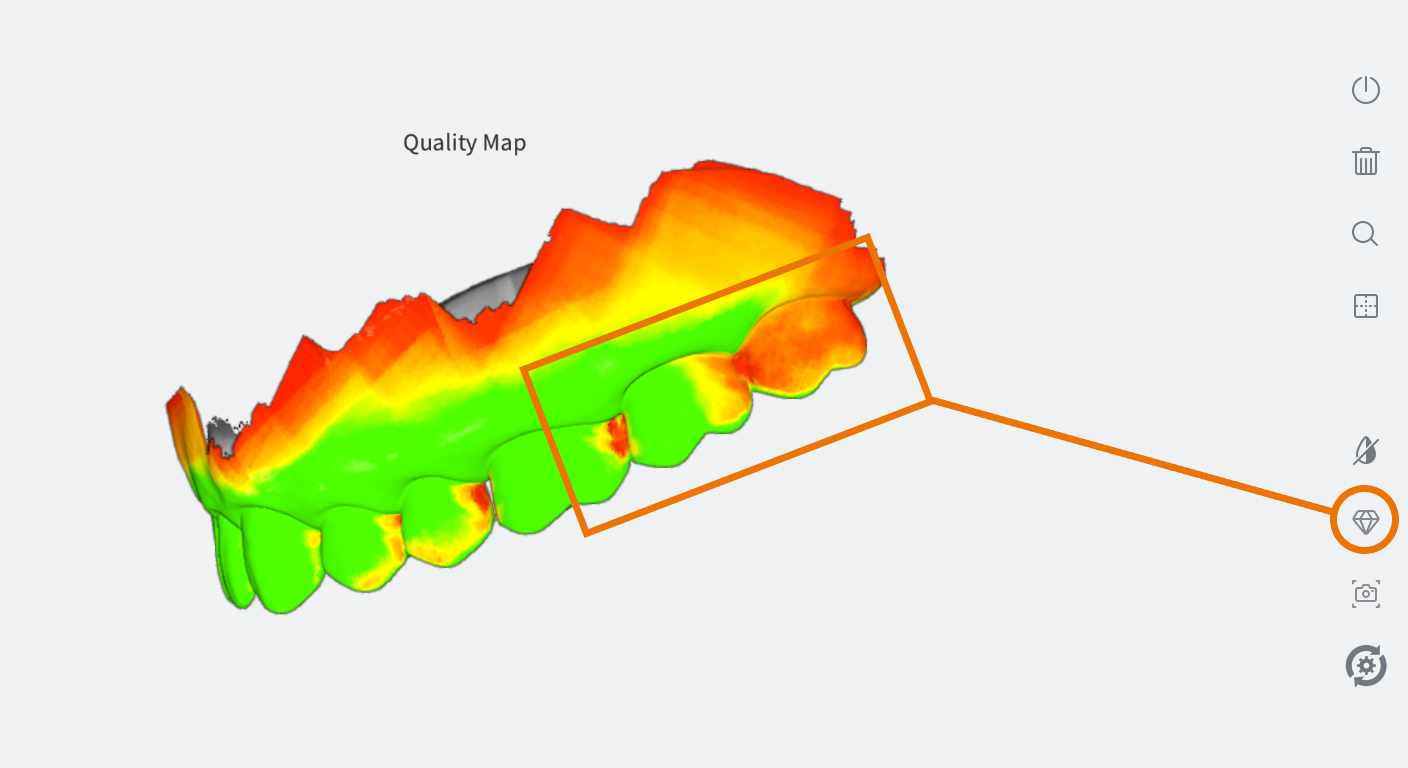
- 2. Using the Quality Map as a guide, rescan the area(s) of interest.
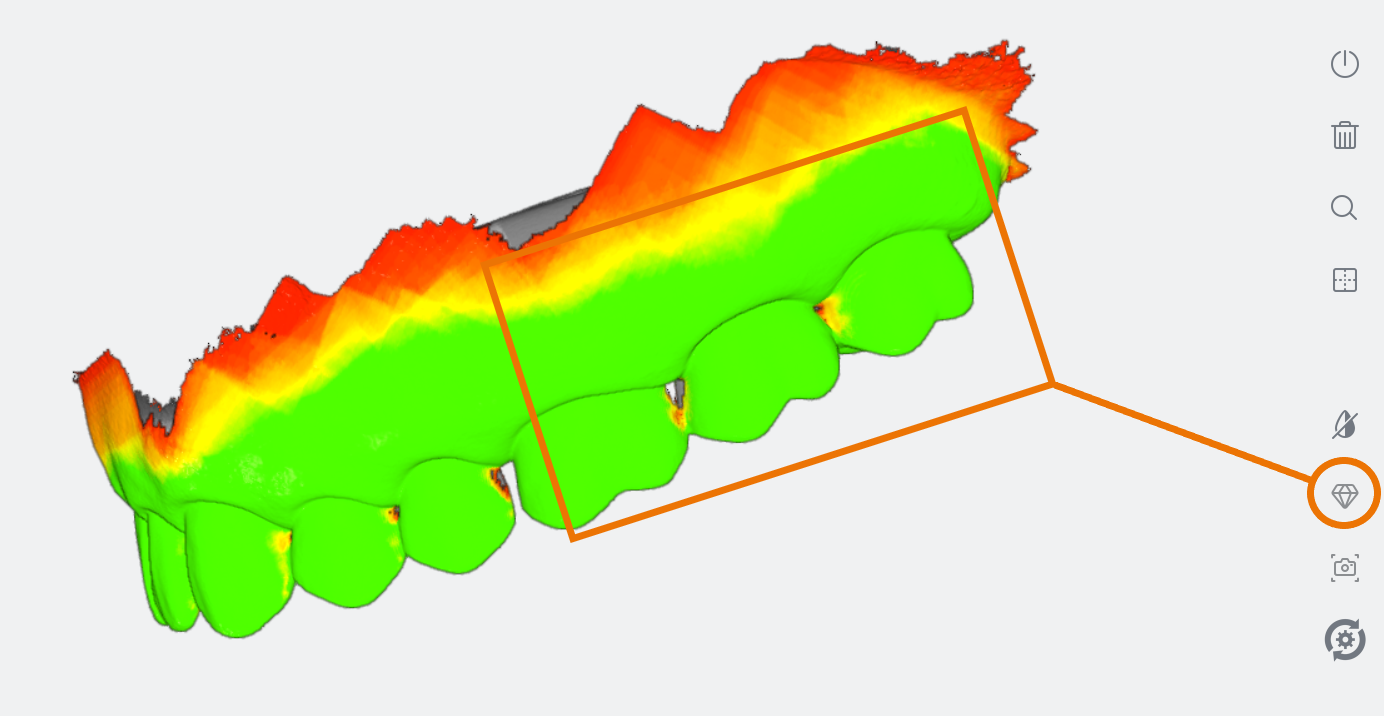
- 3. To close the Quality Map , click again on the Quality Map icon.