![3DISC_Logo_RGB_tiny.png]](https://help.3disc.com/hs-fs/hubfs/3DISC_Logo_RGB_tiny.png?height=50&name=3DISC_Logo_RGB_tiny.png)
⚠️ Important Recommendation
This process is best performed on a smartphone so you can easily scan the QR code using the phone’s camera. It can also be done on a computer with a webcam, depending on the resolution of your webcam.
Step 1 – Create or Use Your 3Disc Cloud Account
-
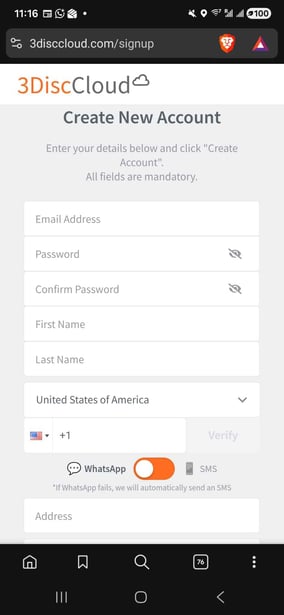
Open a web browser and go to https://www.3disccloud.com/signup
-
Create a new account (more details on how to create a 3discCloud account)
-
If you already have an account, you can use your existing credentials.
-
Step 2 – Log In and Start the Registration
-
Log in using your 3Disc Cloud account.
-
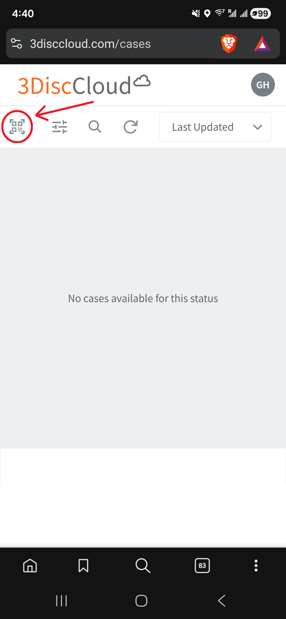
Click the Register button located at the top left of the page.
-
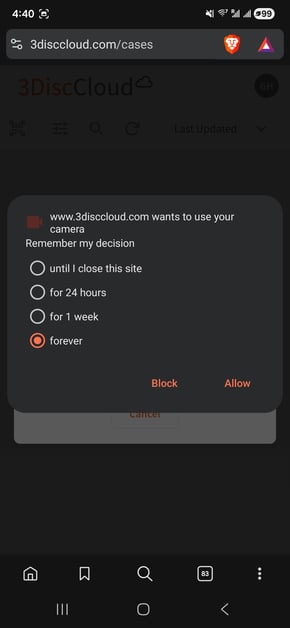
A window will pop up asking for permission to use:
-
Your phone camera (recommended), or
-
Your webcam if you are on a computer
-
-
Allow camera access to continue.
Step 3 – Scan the Scanner QR Code
-
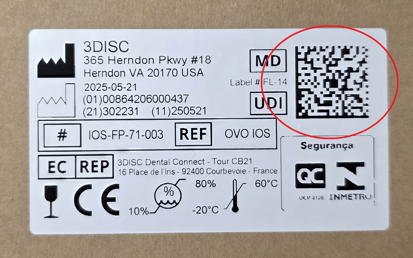
Locate the QR code sticker:
-
On the brown box or
-
On the orange box
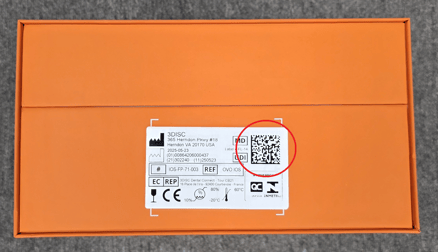
-
-
Use the camera to scan the QR code.
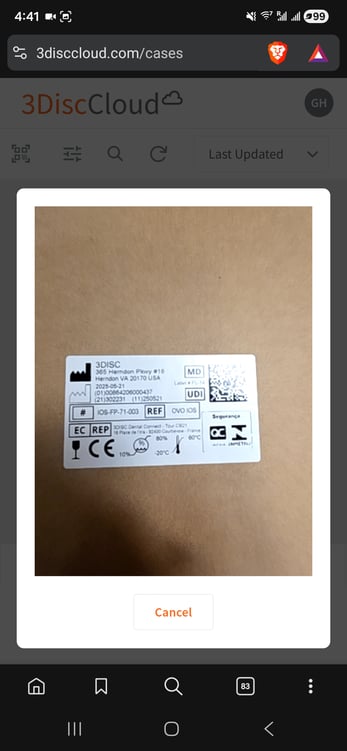
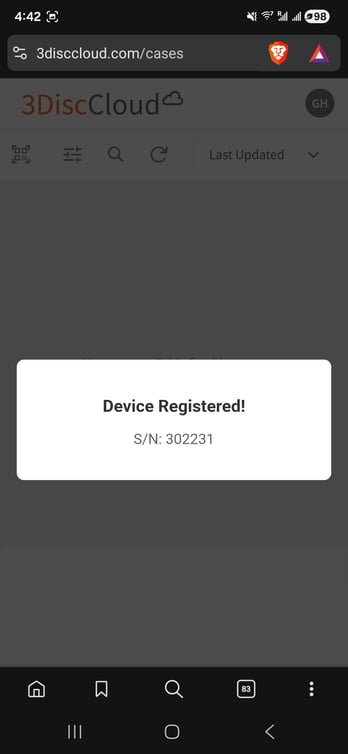
✅ Congratulations! Your scanner is now registered.