![3DISC_Logo_RGB_tiny.png]](https://help.3disc.com/hs-fs/hubfs/3DISC_Logo_RGB_tiny.png?height=50&name=3DISC_Logo_RGB_tiny.png)
Step 1 – Download the Software
-
After registration, go back to your scanner’s PC.
-
Open a web browser and go to https://www.3disccloud.com.
-
Log in using your 3Disc Cloud account.
-
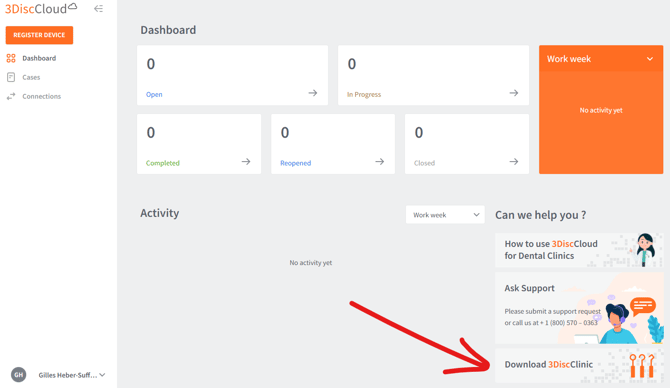
On the Dashboard, Click the Download 3DiscClinic button.
-
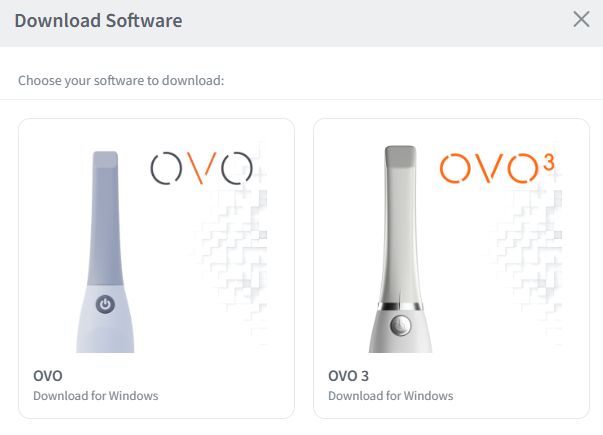
A new window will appear with two options.
-
Select OVO3.
-
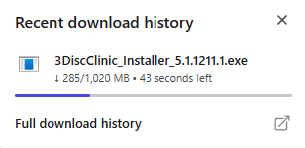
The download will start automatically.
Step 2 – Install the Software
-
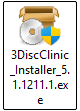
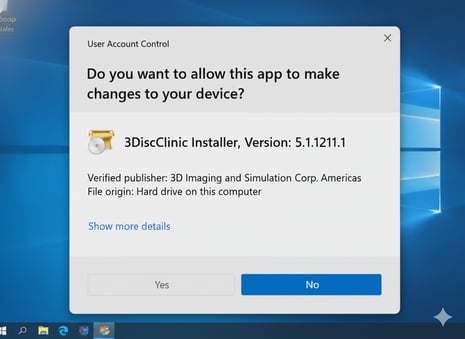
Once the download is complete, double-click the installer file.
-
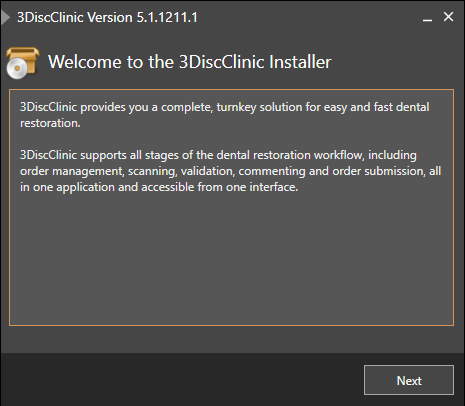
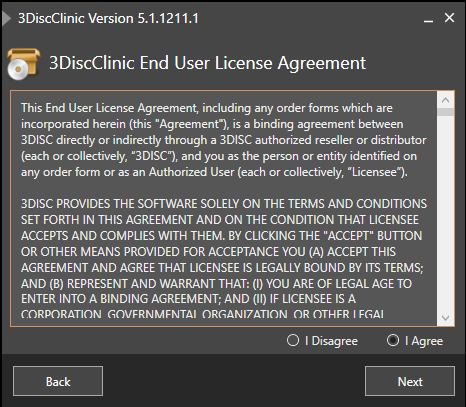
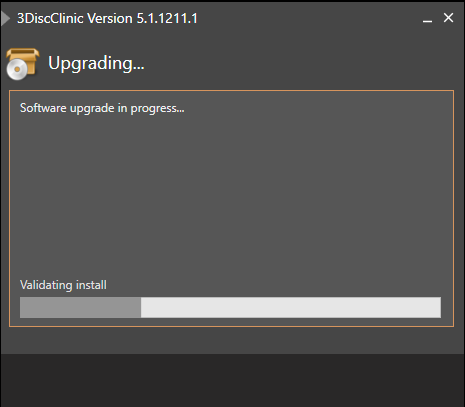
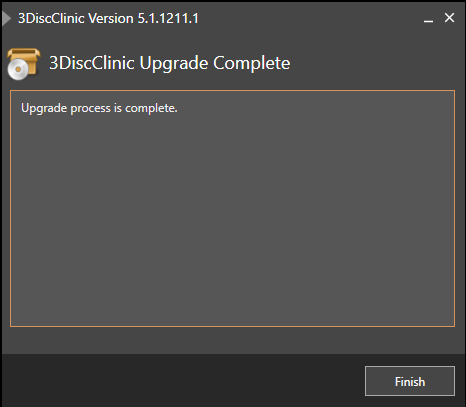
Click Yes and Next and follow the installation steps until completion.
Step 3 – Launch the Software
-
After installation, two new icons will appear on your desktop:
-
3DiscClinic – the scanning software

-
QuickSupport – used for remote support and training

-
-
Double-click 3DiscClinic.
-
The software will launch.
🎉 You’re all set and ready to scan!