![3DISC_Logo_RGB_tiny.png]](https://help.3disc.com/hs-fs/hubfs/3DISC_Logo_RGB_tiny.png?height=50&name=3DISC_Logo_RGB_tiny.png)
3DiscClinic™ 3D Settings enable you to select settings preferences for the 3DiscClinic™ Scan Workflow.
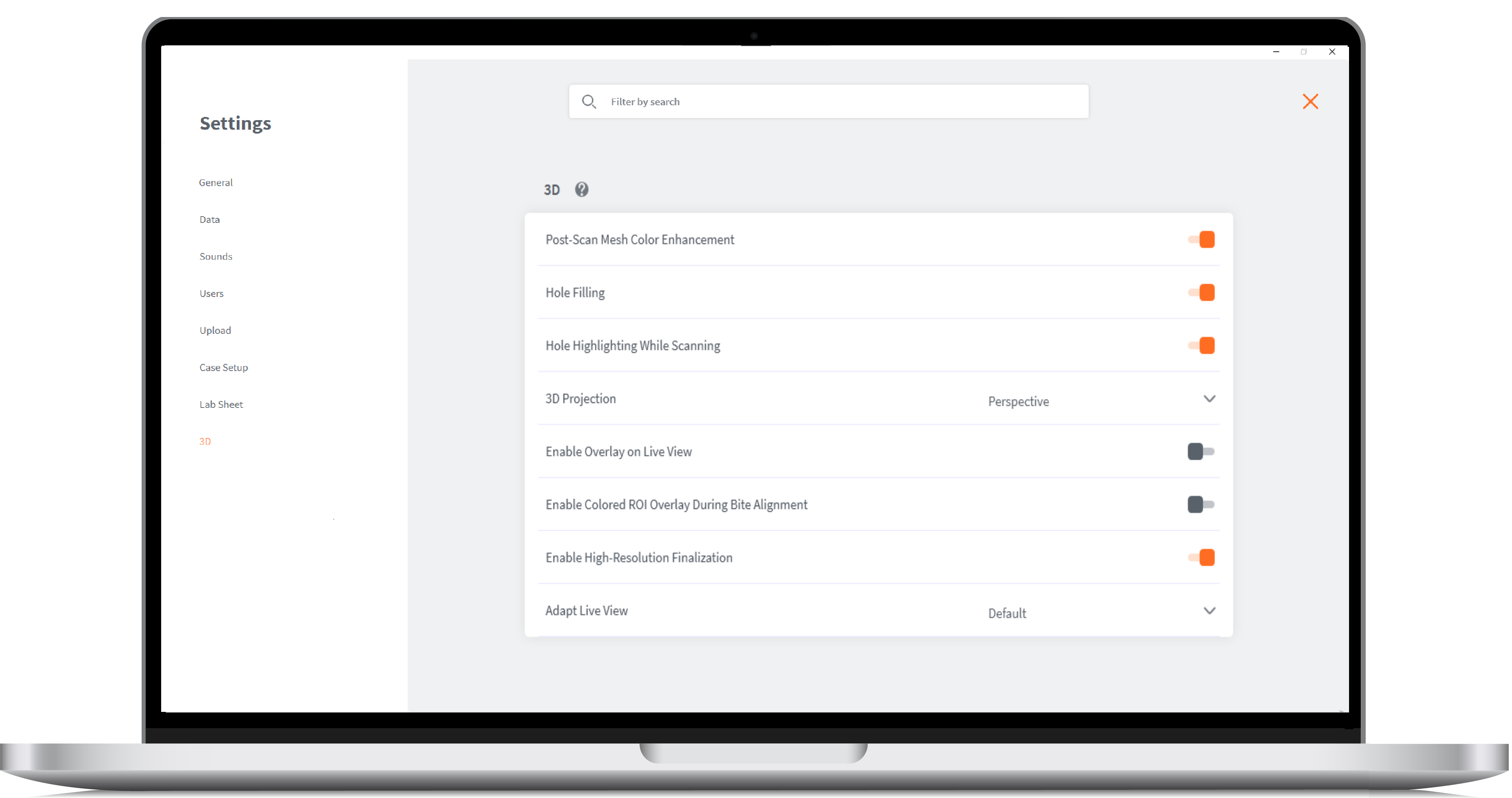
3D Settings Options
| 3D Setting | Description |
|---|---|
| Post-Scan Mesh Color Enhancement | 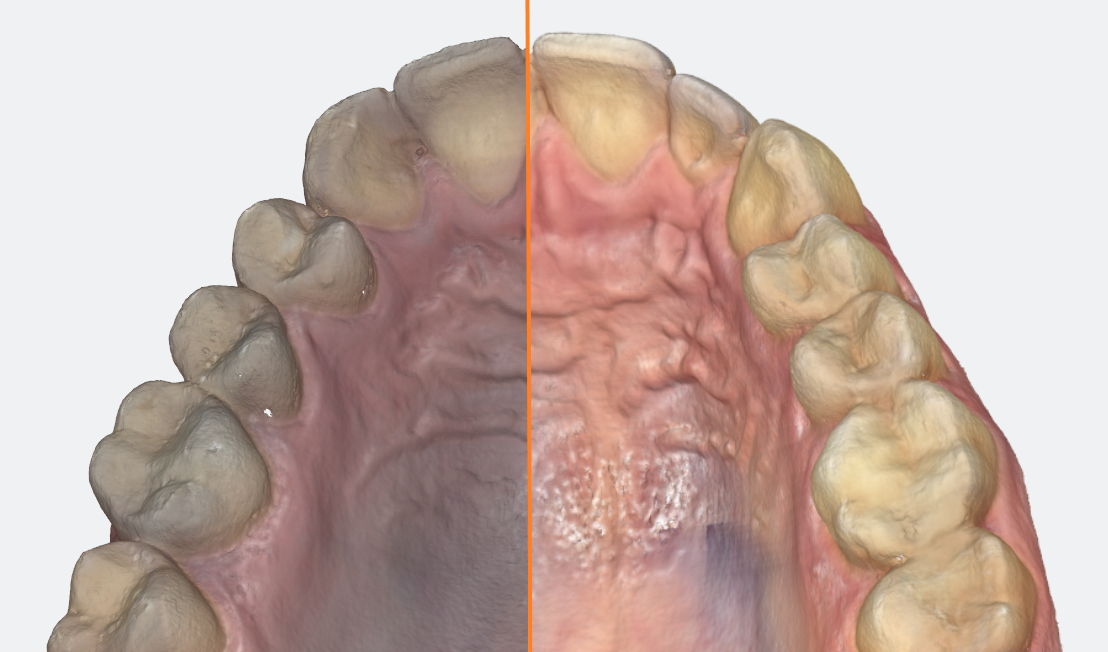 By incorporating color data from images captured during the scanning process, this innovative process enhances both the color and contrast of final scan results. By incorporating color data from images captured during the scanning process, this innovative process enhances both the color and contrast of final scan results.This feature is enabled by default. |
| Hole Filling | When activated, the 3D scanning software automatically fills any regions in the scan - or “holes” - where data is missing. Holes are filled when the user stops scanning and the model is displayed on the screen. |
| Hole Highlighting While Scanning | When automatic hole highlighting is activated, this option highlights those areas where data is missing during the live scan. This enables the user to see where data is lacking and complete these areas. |
| 3D Projection | Click to select either Perspective or Parallel default view of scanned arches. Note: prior to version 4.3, this option was available only in the 3D viewer after Finalization, and in the Case Preview page. This feature is now available while scanning. |
| Enable Overlay on Live View | Option to add enhanced overlay to the live view to help show the areas that are in focus so that they quickly reconnect. Deactivated by default. |
| Enable Colored ROI Overlay During Bite Alignment | Select to display colored ROI overlay during Bite Alignment. Activated by default. Triggers a green/red overlay during scan phase to indicate actively gathering data. |
| Enable High-Resolution Finalization | Select to enable default High-Resolution (HR) finalization of scans. |
| Adapt Live View | Adapt Live View window to either Scan From Behind or Scan From Front. 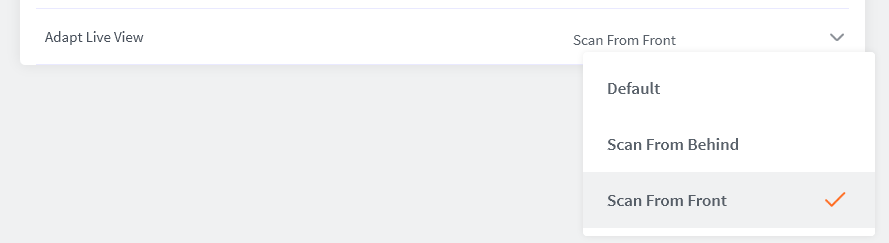 |
| Use Enhanced Color in Finalization | Replaced by Post-Scan Mesh Color Enhancement setting in version 4.3 |