![3DISC_Logo_RGB_tiny.png]](https://help.3disc.com/hs-fs/hubfs/3DISC_Logo_RGB_tiny.png?height=50&name=3DISC_Logo_RGB_tiny.png)
Configuring 3DiscCloud™ Settings
To access 3DiscCloud™ Settings:
- Click on the expand icon opposite your User Name to open the Configuration Menu.
-
In the Configuration Menu click Personal Settings.
This opens the 3DiscCloud™ Settings page.
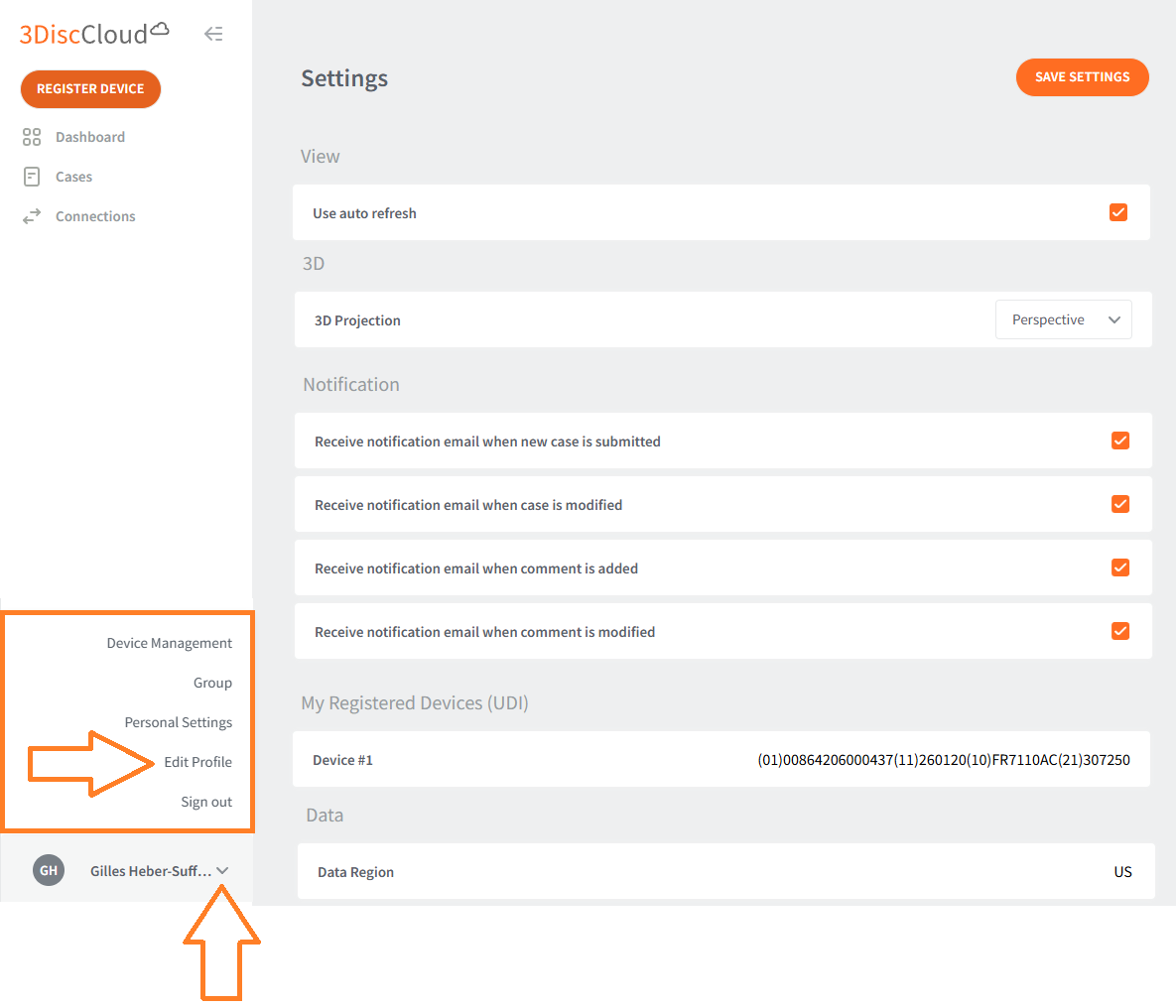
3DiscCloud™ Personal Settings
3DiscCloud Personal Settings
The following Personal Settings are available in 3DiscCloud:
| ⚙️ 3DiscCloud Personal Setting | Description |
| Use auto refresh | Will automatically refresh your 3DiscCloud account when new data arrives. |
| 3D Projection | Defines the default projection for 3D Models: 3D Model projection - Perspective - Parallel |
| Receive notification email when new case is submitted | Triggers when a dentist uploads a new scan (STL/OBJ/PLY) from 3DiscClinic to the cloud. For a lab, this means a new digital impression is ready for design or 3D printing. |
| Receive notification email when case is modified | Notifies you if the status of the restoration changes (e.g., status moved from "Sent" to "In Progress" or "Completed"), or if the delivery date is updated. |
| Receive notification email when comment is added | Alerts you when a lab technician or dentist leaves a message or instruction regarding the 3D model, such as specific shade requests or questions about the margin line. |
| Receive notification email when comment is modified | Sends an update if a previously posted instruction has been edited. This ensures that the lab and the clinic are always working from the most recent clinical notes. |
| My Registered Devices (UDI) | Here will appears the serial number of the scanners you registers with your 3DiscCloud account |
| Data Region | The region of your data are located. Your connections (Lab or Dentists) must be in the same Region |