![3DISC_Logo_RGB_tiny.png]](https://help.3disc.com/hs-fs/hubfs/3DISC_Logo_RGB_tiny.png?height=50&name=3DISC_Logo_RGB_tiny.png)
Connecting with Dental Clinics
Your 3DiscCloud™ account enables you to:
-
Create connections with labs
-
Invite labs to connect via 3DiscCloud™
-
Communicate directly with labs
-
Manage the status and progress of Cases
-
Manage groups of Clinic and Lab users
-
Integrate Partner services (EasyRx,DDX,...)
The 3DiscCloud™ platform is designed to facilitate file sharing and manage connections with laboratories. It is NOT intended as a cloud storage service.
Adding a Connection
To add a connection:
-
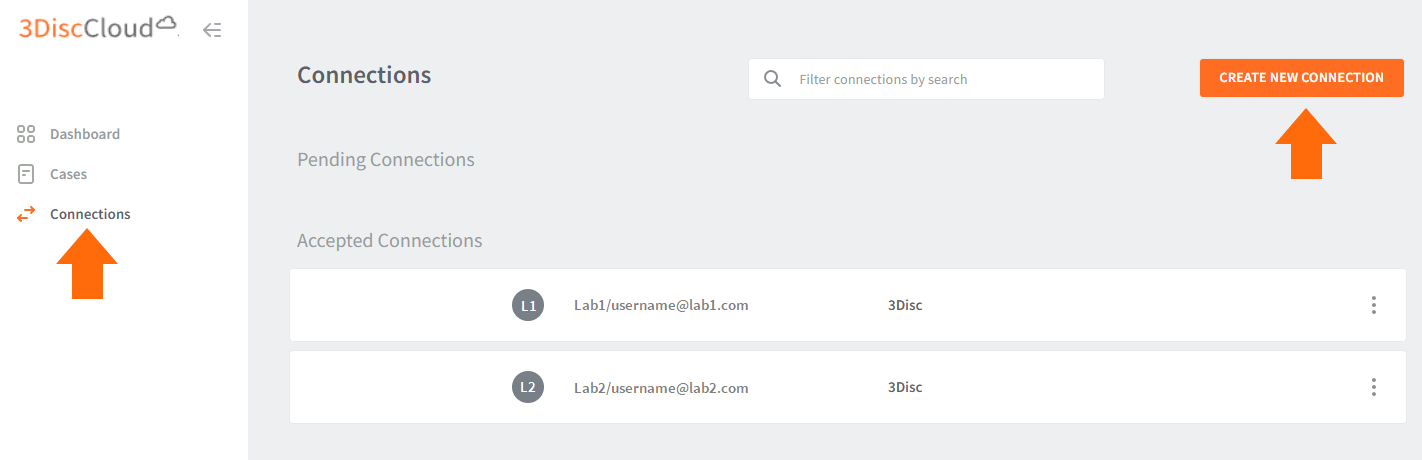
1. Click Connections in the 3DiscCloud™ left-hand menu.
- This will open the Connections page.
-
2. ClickCreate New Connection
- This will open the Create Connection dialog box.
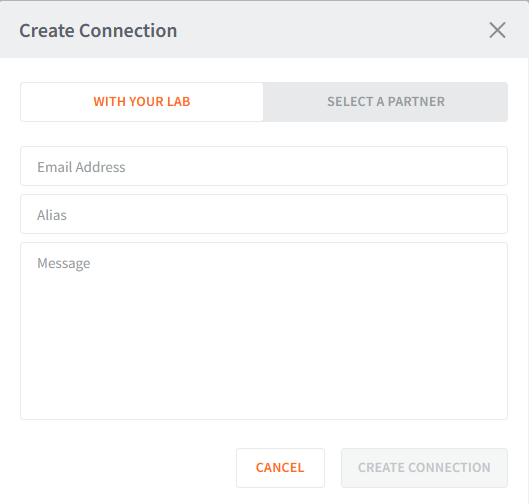
Adding a Connection to a Dental Clinic
- 3. In the Create Connection dialog box, select
With Your Lab - 4. Enter the Lab email address, Alias (optional) and Message.
- 5. Click Create Connection.
-
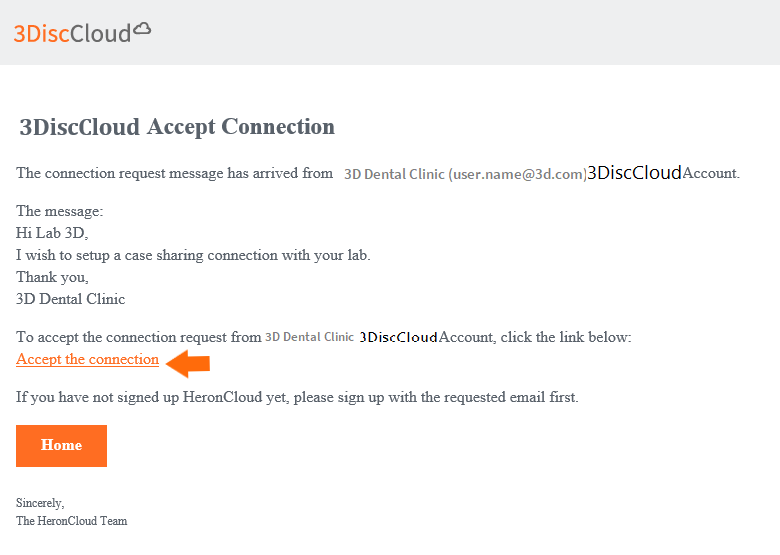
An email request is sent, inviting the lab to accept the connection.
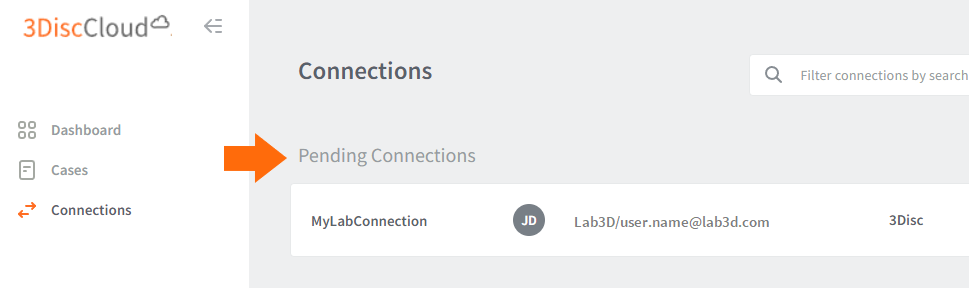
- Current connection requests are displayed in the list of Pending Connections:
The 3DiscCloud™ platform provides labs with secure access to all case files associated with orders received.
Adding a Partner Service
To add a Partner service supported by 3DiscCloud™:
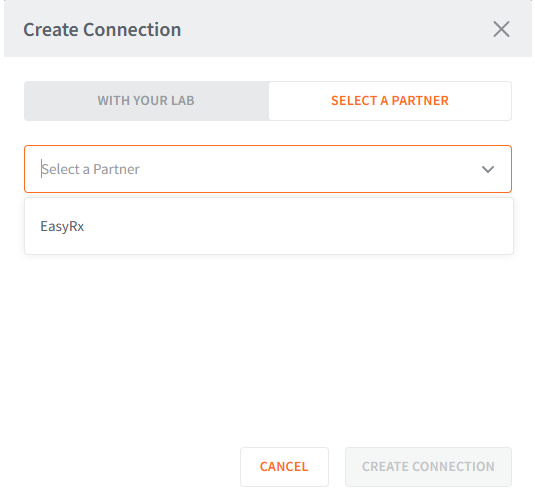
- 1. In the Create Connection dialog box, select
Select a Partner
-
2. In the drop-down list, select a Partner.
-
3. Click Create Connection.
-
4. In your Partner account, accept the connection request from 3DiscCloud.

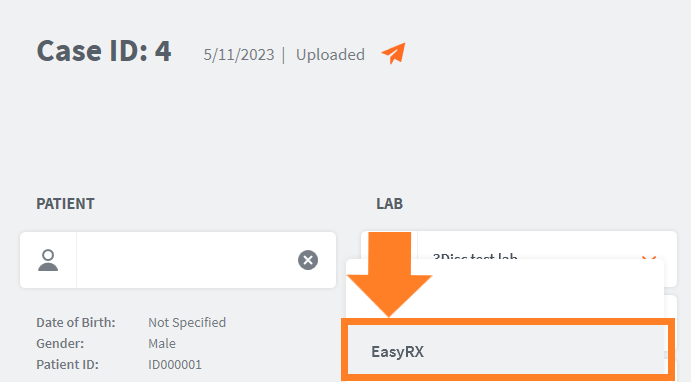
- The Partner will appear in the list of available Labs & Cloud-based services in the Case Review page.