![3DISC_Logo_RGB_tiny.png]](https://help.3disc.com/hs-fs/hubfs/3DISC_Logo_RGB_tiny.png?height=50&name=3DISC_Logo_RGB_tiny.png)
Accessing Data Settings
To access 3DiscClinic™ Data Settings: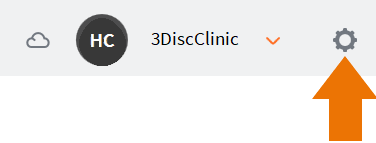
- Click the Settings icon ⚙️ in the top right-hand corner of the 3DiscClinic™ Home Page.
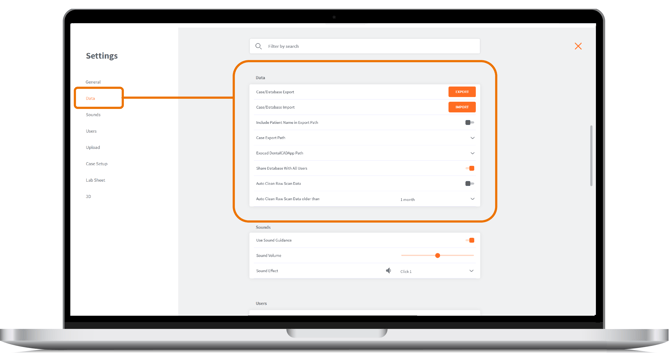
This will open the Settings page. Settings Groups are displayed in the left-hand Settings menu.
- Click Data in the left-hand Settings Menu.
Note: System settings are automatically applied to all users.
Data Settings
The following Data Settings are available in 3DiscClinic™:
| ⚙️ Data Setting | Description |
|---|---|
| Case/Database Export | Click on the EXPORT button to select the 3DiscClinic™ Data folder and Export folder, and to export All or Selected Cases |
| Case/Database Import | Click on the IMPORT button to select the 3DiscClinic™ Data folder and Import folder, and to import All or Selected Cases |
| Include Patient Name in Export Path | Select this option to include patient name in the export path. Deactivated by default. Click slider left to deactivate, right to activate.   |
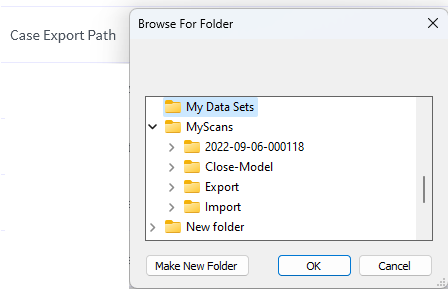
| Case Export Path |
Click to specify the default Case Export folder
|
| Exocad DentalCADApp Path | Click to define Exocad export file path. NOTE: The Design By Exocad option is displayed in the Case Finalization Export options only when this export path is configured. For more information, visit: Exporting Case files |
| Share Database With All Users | Activate this feature to share or restrict Database access. Click slider left to deactivate, right to activate. |
| Auto Clean Raw Scan Data | Activate this feature to delete scan data automatically after a predefined period. Click slider left to deactivate, right to activate. When you activate Auto Clean Raw Scan Data, data for deleted scans is only available in review mode. Case data can be reviewed and shared, but it is no longer possible to update the scan. 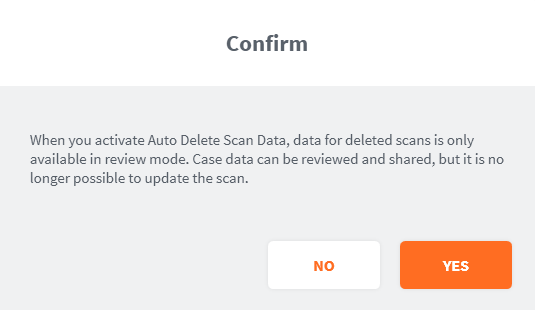 |
| Auto Clean Raw Data older than… | Select predefined period after which scan data will be deleted automatically: 1 week, 1 month, 3 months. The ++default++ period is 3 months. 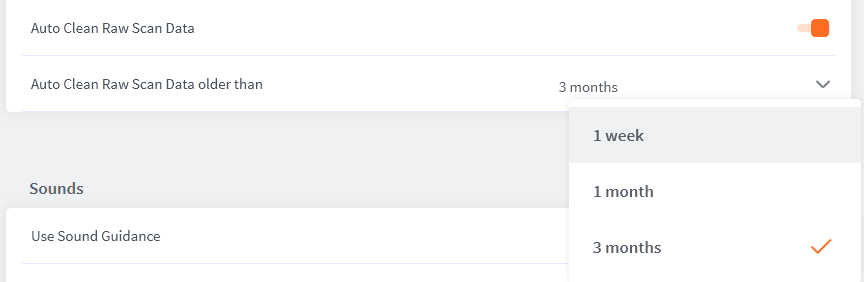 |