![3DISC_Logo_RGB_tiny.png]](https://help.3disc.com/hs-fs/hubfs/3DISC_Logo_RGB_tiny.png?height=50&name=3DISC_Logo_RGB_tiny.png)
Disable/Enable Captured Color

To make contours more visible, you may wish to disable the natural color of the digital 3D model.
To Disable Captured Color:
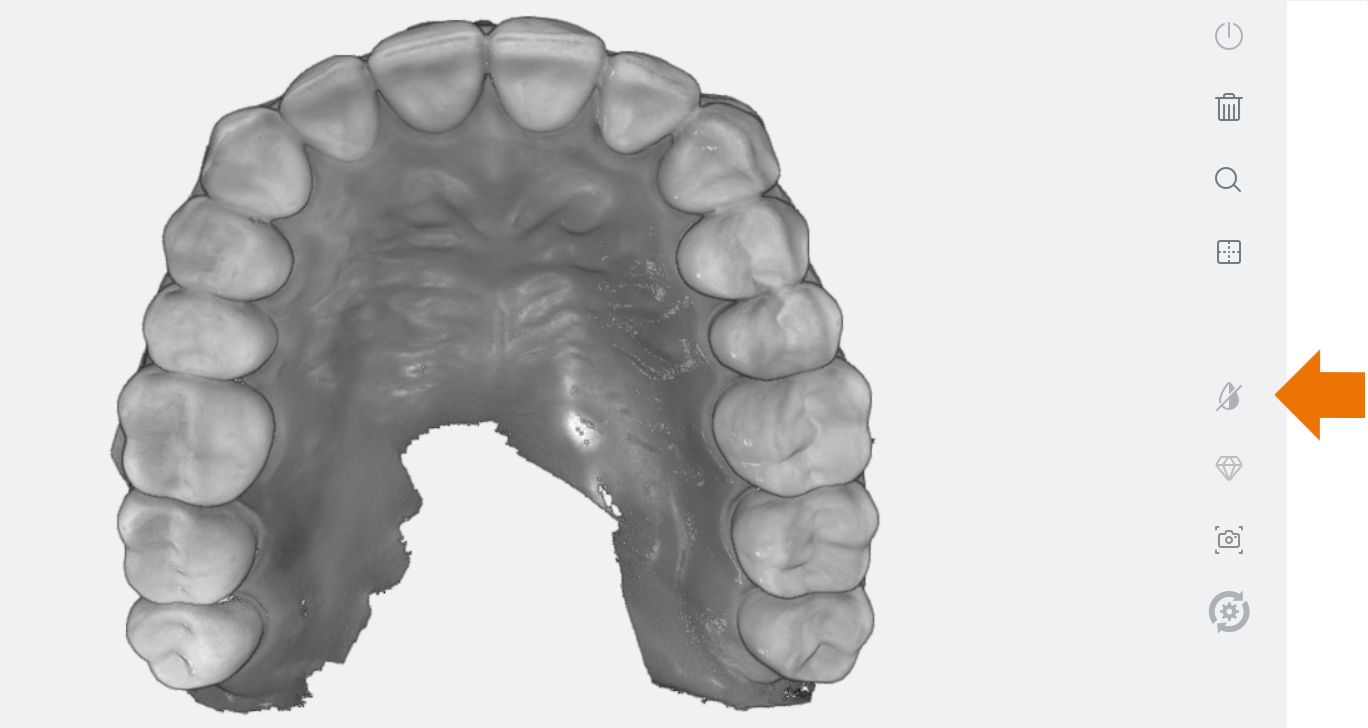
- 1. Click on the Disable Captured Color icon in the left-hand Scan Tools menu.
- 2. To return to the natural colors of the scan, click again on the Disable/Enable Captured Color icon.