![3DISC_Logo_RGB_tiny.png]](https://help.3disc.com/hs-fs/hubfs/3DISC_Logo_RGB_tiny.png?height=50&name=3DISC_Logo_RGB_tiny.png)
Edit, Delete or Merge Patient Profiles
First, select a Preferred Start Page
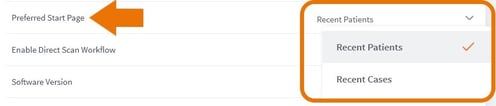
In Settings, you can select a preferred display for your Start Page :
- 1. In Settings/General, click Preferred Start Page.
- 2. Select Recent Patients or Recent Cases .
To Edit a patient profile:
- Step 1. Click the Edit icon as shown.

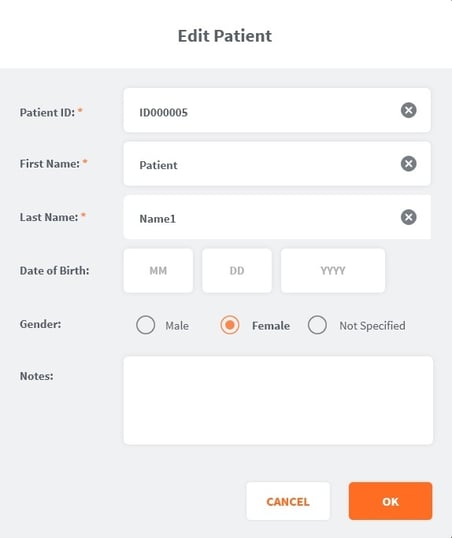
This opens the Edit Patient dialogue box:
- Step 2. Modify Patient details, then click OK to apply changes.
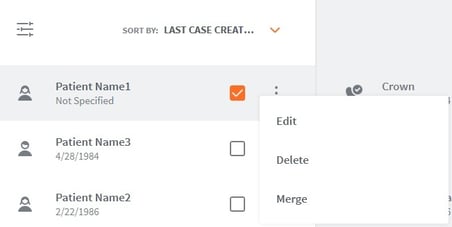
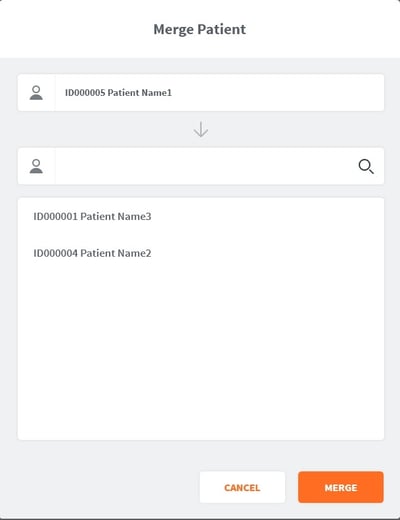
To Edit, Delete or Merge a Patient profile:

- Step 3. Click on the 3-point icon to the right of the Patient folder, then select the desired option.
Deleting Multiple Patient Profiles
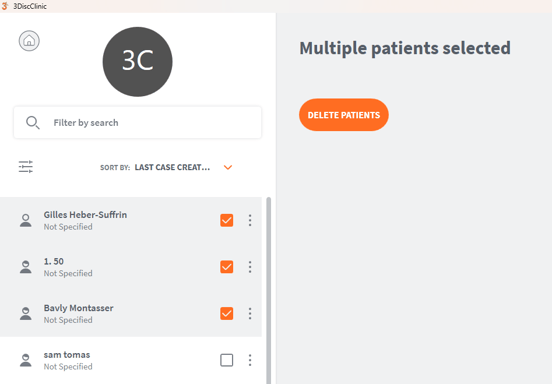
To delete multiple patient profiles:
-
Step 1. Select the patient profiles in the left-hand menu of the Home Page, then
-
Step 2. Click DELETE PATIENTS.