![3DISC_Logo_RGB_tiny.png]](https://help.3disc.com/hs-fs/hubfs/3DISC_Logo_RGB_tiny.png?height=50&name=3DISC_Logo_RGB_tiny.png)
Using the Margin Line Tool

The Margin Line Tool enables you to trace margin lines on 3D models, in order to ensure the accuracy of restorations ordered from the lab.
To trace a Margin Line, in the Finalization Page:
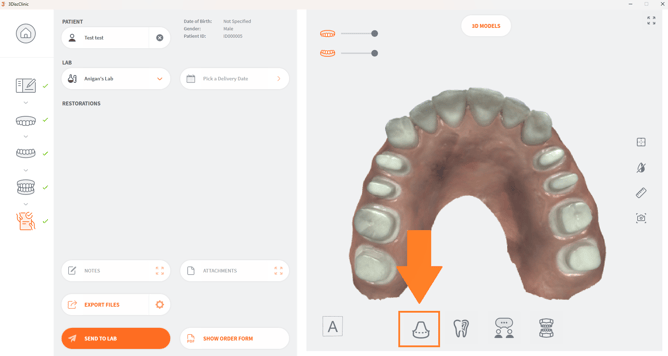
- 1. In the Review Page, click on the icon of the Margin Line Tool.

-
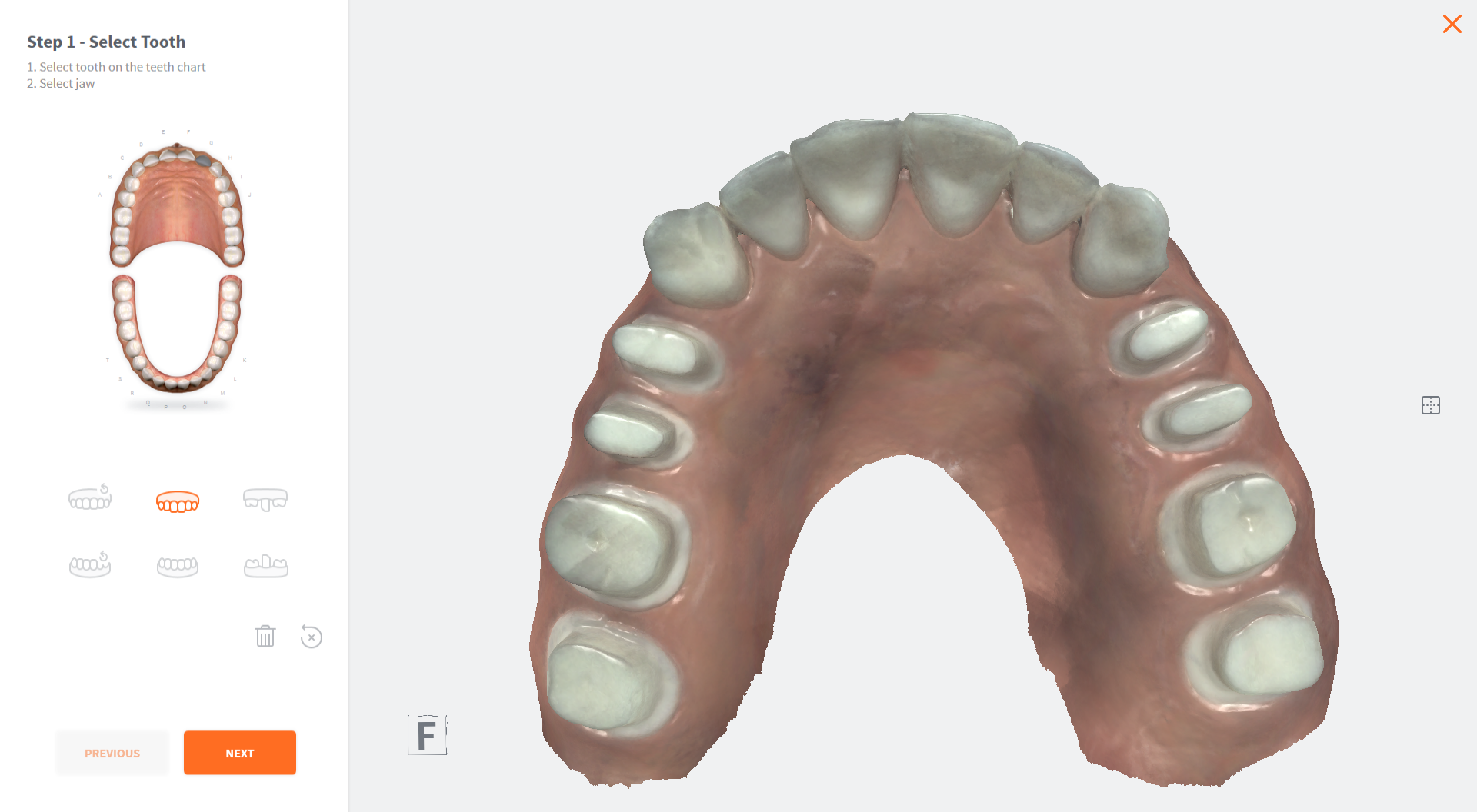
This opens the Margin Line Tool: Step 1 - Select Tooth
-
2. Click on the maxillary or mandibular icon to display the arch.
-
3.Click to select a tooth for which a restoration has been added.
-
4. ClickNEXT
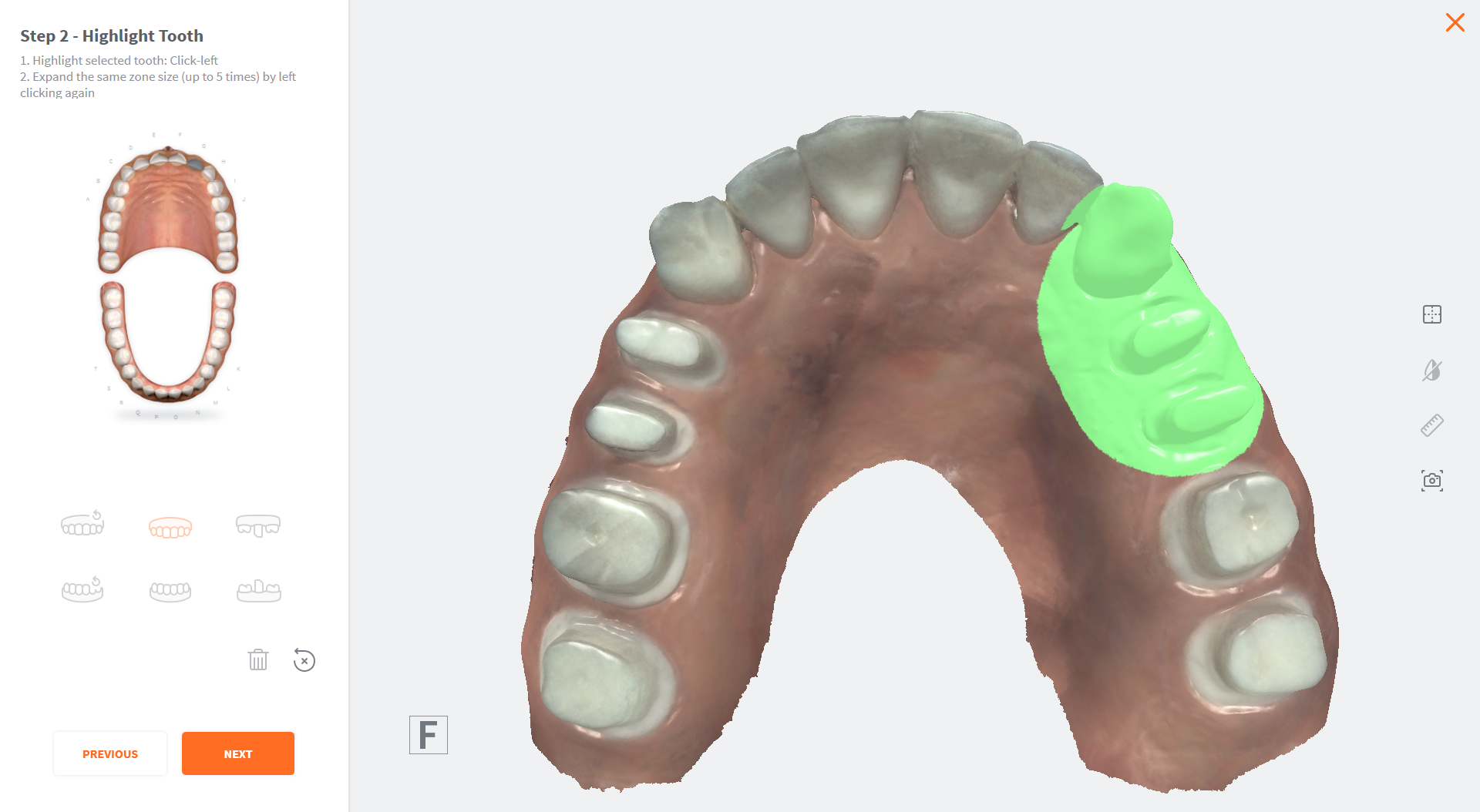
- This opens the Margin Line Tool: Step 2 - Highlight Tooth
-
5. Click-left on the tooth to select a region.
-
6. Click again (up to 5 times) to expand the selected region.
-
7. Click NEXT
-
This opens the Margin Line Tool: Step 3 - Draw Margin Line
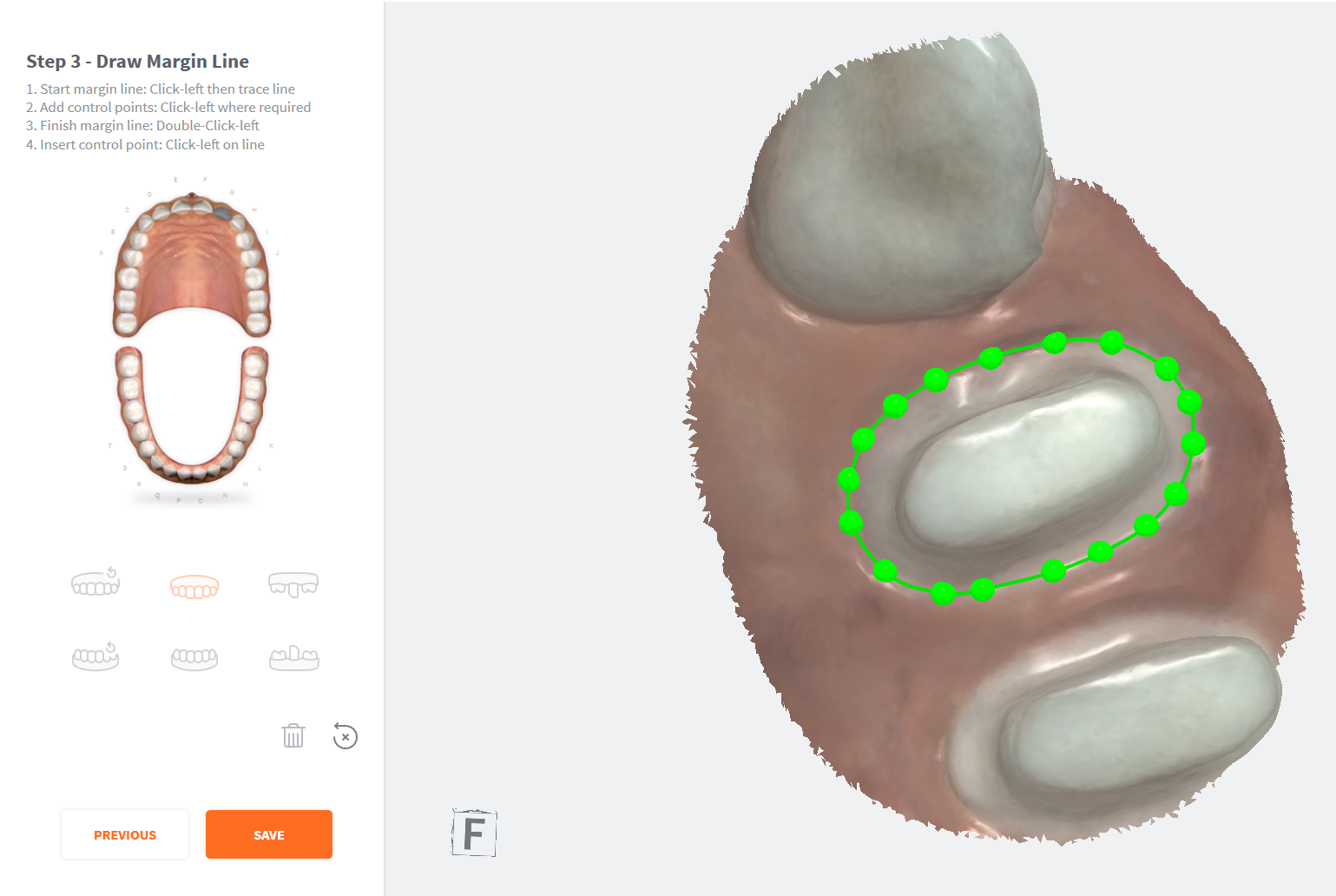
- 8. Draw a Margin Line as follows:
- To start margin line: Click-left then trace line
- To reposition 3D Model while drawing: Click-left + drag
- To insert a new control point: Click-left on line
-
To complete the margin line: Double-Click-left
-
9. Click SAVE
-
10. Click X to exit the Margin Line tool.
-
11. Click X again to exit the Inspection Page.
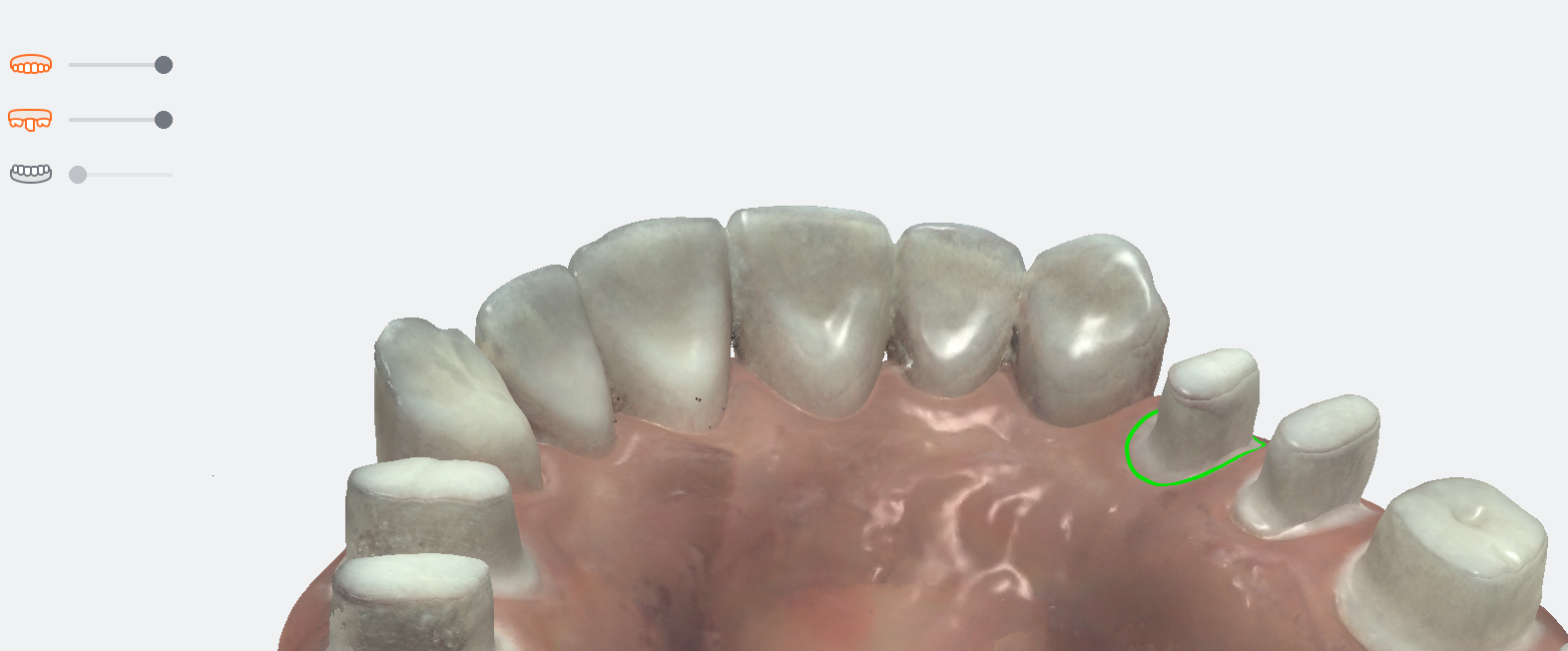
The Margin Line can be viewed in the 3D Models tab of the Case Review page.
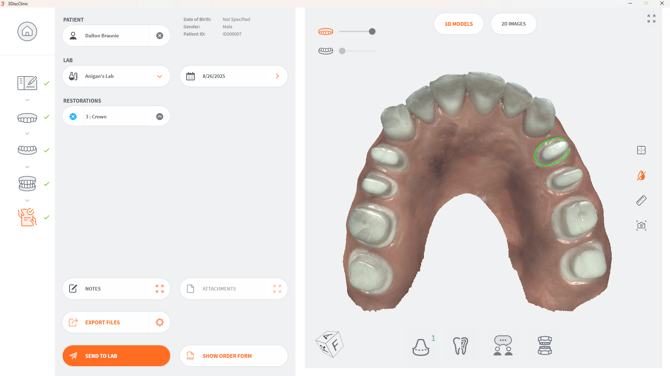
Modifying a Margin Line
To modify a Margin Line:
- 1. Click to expand the 3D Models tab to full-screen.
-
2. Click on the Margin Line icon in the right-hand Case Review Tools menu.
-
3. Click to select the tooth for which a Margin Line has been drawn.
-
4. Click EDIT
-
To Delete the Margin Line, clickDELETE
-
5. Follow the Margin Line procedure described above.
Available Complementary Tools:
| Icon | Case Review Tool | Description |
|---|---|---|
 |
Reset Viewport | Re-center the digital 3D model on the screen. |
 |
Choose Color Display | Choose between natural captured color, grayscale and bi-color display of digital 3D Model. |
 |
Measurement | Tool enabling you to take measurements on the digital 3D Model. |
 |
Screenshot | Take screenshots of the 3D model as you edit it. |