![3DISC_Logo_RGB_tiny.png]](https://help.3disc.com/hs-fs/hubfs/3DISC_Logo_RGB_tiny.png?height=50&name=3DISC_Logo_RGB_tiny.png)
Taking Live View Screenshots

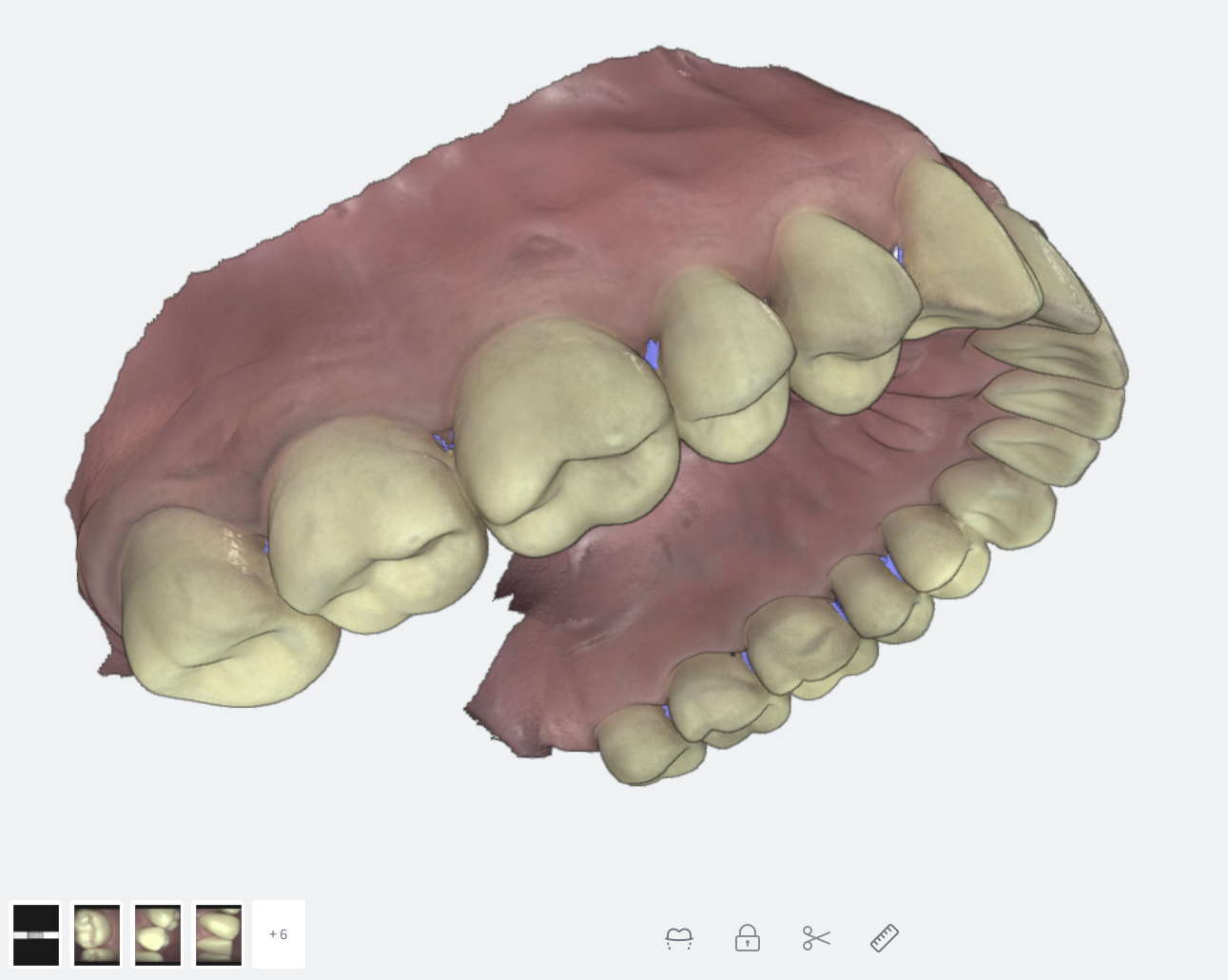
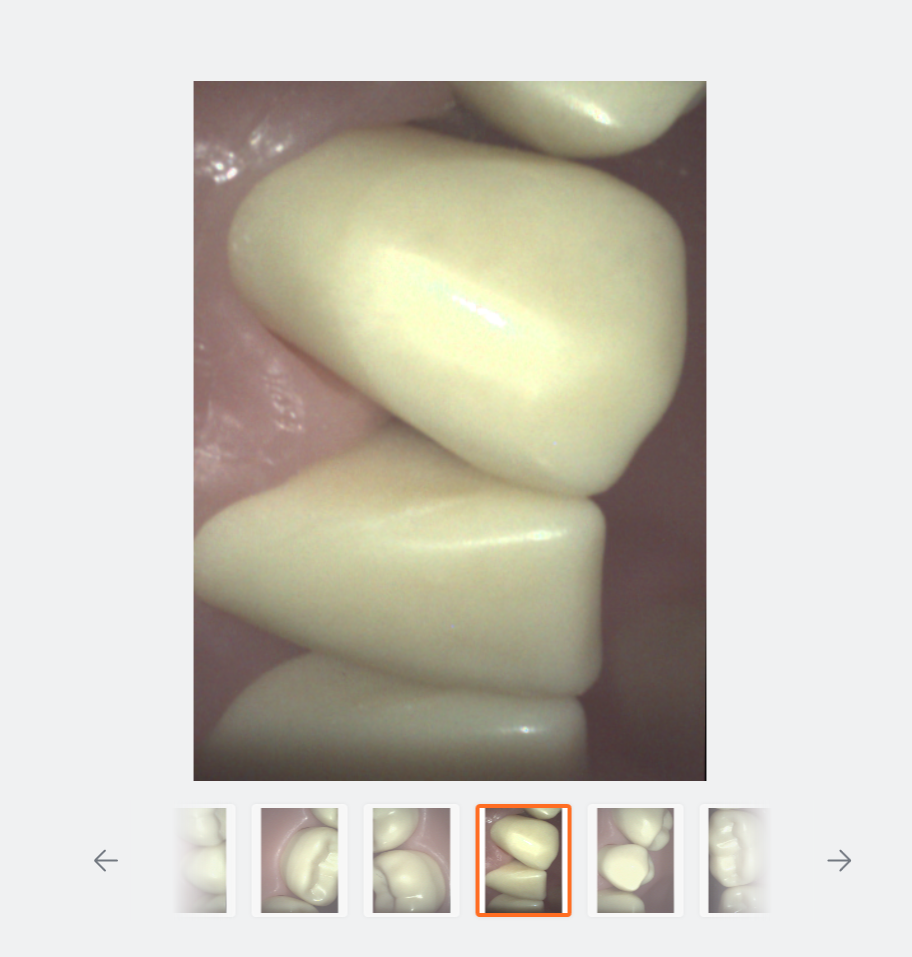
During the scan process, you can take and store 2D images of the interior of the patient mouth.
-
1. During the scan, press the C key on your keyboard or press the scanner button for 1 second
2D Live View Screenshots are displayed in thumbnail format in the bottom left-hand corner of the screen.
3DiscClinic™ - Taking Live View Screenshots -
2. Click on a thumbnail image to inspect the 2D images in fullscreen format.
- 3. Click on the Delete icon to delete as necessary.
- 4. Click on the Close icon in the top right-hand corner to close the fullscreen view.
Live View Screenshots taken during the scan can be viewed in the Case Review page.
For a brief video demonstration go to: 3DISC Knowledge Center: Taking Live View Screenshots