![3DISC_Logo_RGB_tiny.png]](https://help.3disc.com/hs-fs/hubfs/3DISC_Logo_RGB_tiny.png?height=50&name=3DISC_Logo_RGB_tiny.png)
User Cloud Accounts
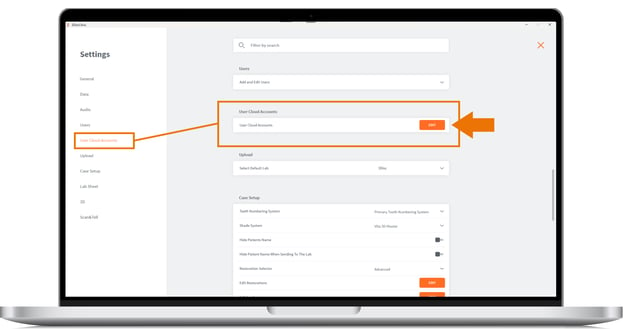
Managing User Cloud Accounts
- 1. Click the System icon ⚙️ located in the top right corner of the Home Page, to access Settings.
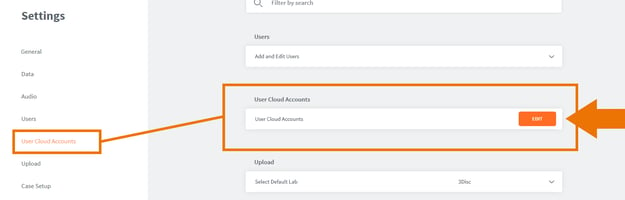
- 2. Select User Cloud Accounts in the left-hand Settings menu, and clickEdit
- 3. This opens the User Cloud Accounts dialog box:
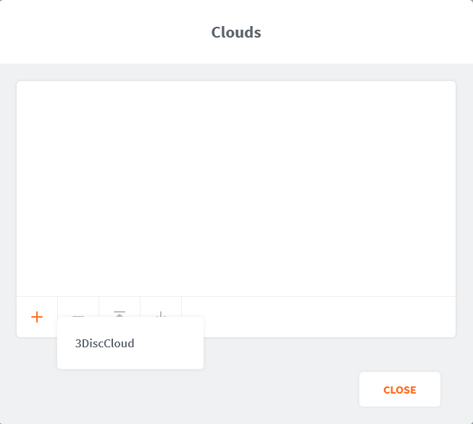
- 4. Click the + icon, and select the 3DiscCloud™ platform from the list.
Note: Depending on your country or region, it may be possible to connect to other cloud platforms.
- For more information, go to3DISC Partner Integrations
―
- 5. Click Apply
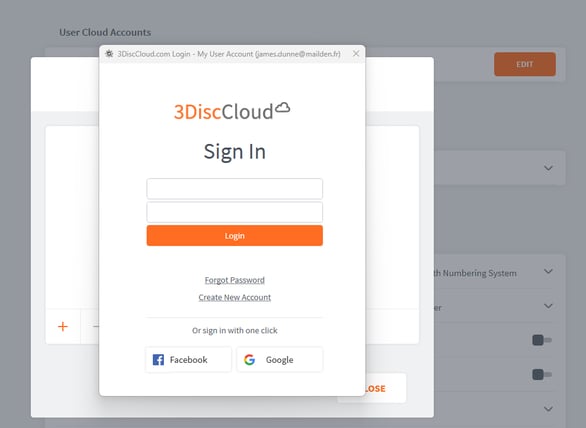
The 3DiscCloud™ Sign In page will display, inviting you to sign in or create a new account.
💡Click for information on Creating a 3DiscCloud™ User Account
Connecting to the Reveal® DDX Platform via 3DiscClinic™
To connect to the Reveal® DDX Platform via 3DiscClinic™:
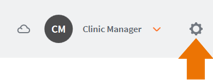
- 1. Click the System icon ⚙️ located in the top right corner of the 3DiscClinic™ Home Page, to access Settings.
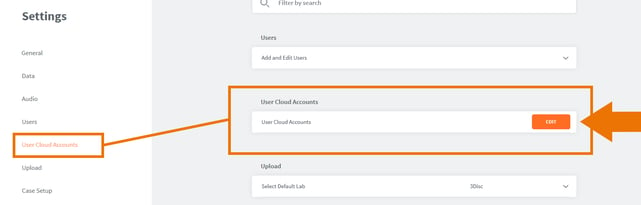
- 2. Select User Cloud Accounts in the left-hand Settings menu, and clickEdit
- 3. This opens the User Cloud Accounts dialog box:
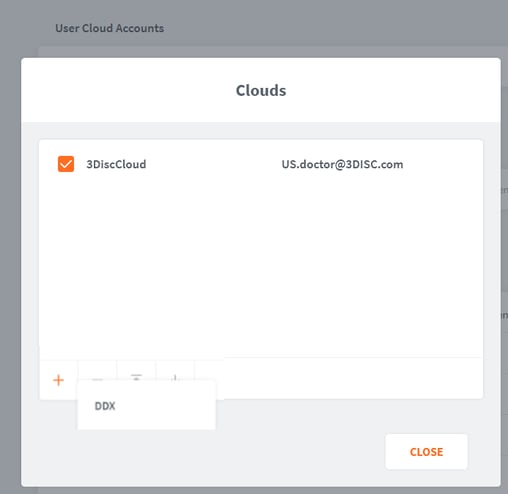
- 4. Click the + icon, and select the DDX partner platform from the list.
This will send you to the Reveal DDX platform.
- 5. You will be invited to Login or Create an Account:
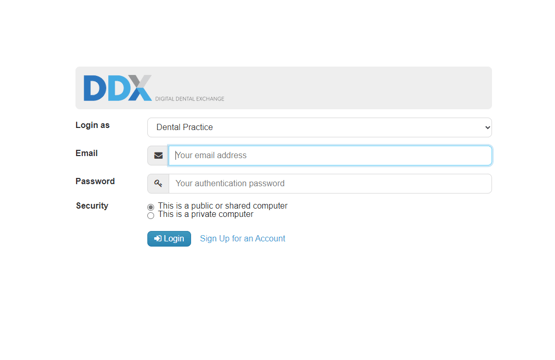
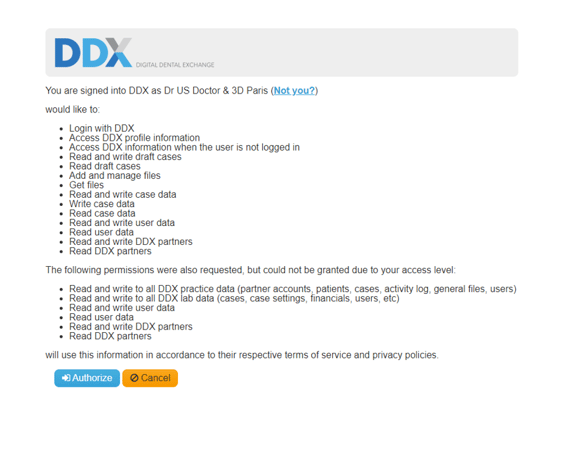
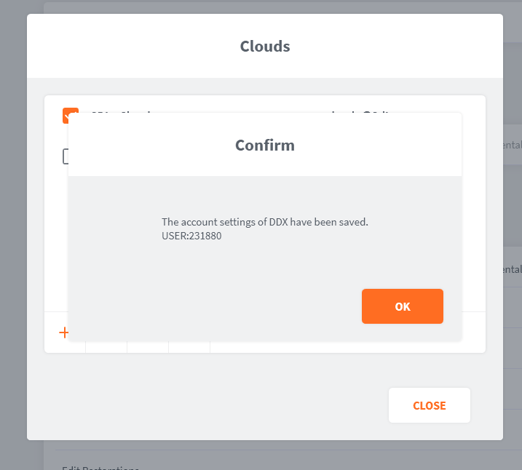
- 6. 3DiscClinic™ will register and save your DDX Account Settings:
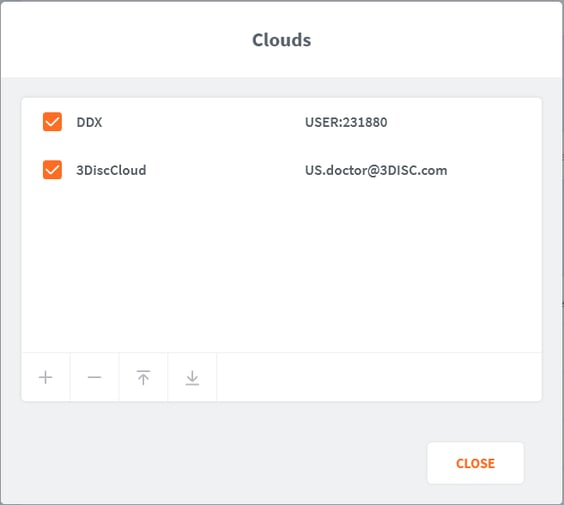
- The DDX platform is added to your list of User Cloud Accounts:
- Your DDX Account is displayed in the Lab drop-down list of the Case Review page:
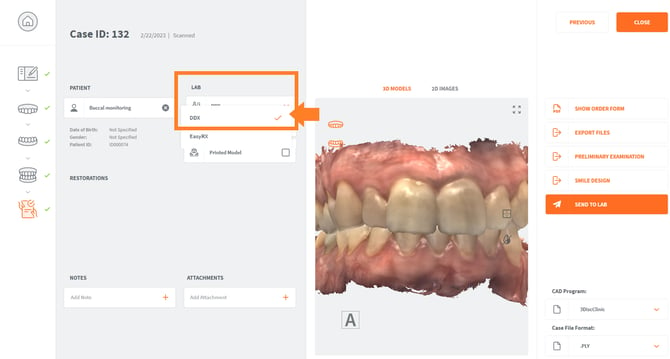
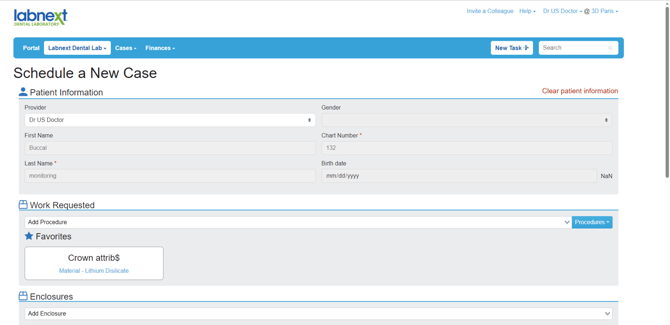
- When you select the DDX Platform, cases sent via 3DiscClinic are automatically displayed in your DDX Account:
ℹ️ For information on managing your 3DiscCloud™ account, visit: Communicating With Labs