![3DISC_Logo_RGB_tiny.png]](https://help.3disc.com/hs-fs/hubfs/3DISC_Logo_RGB_tiny.png?height=50&name=3DISC_Logo_RGB_tiny.png)
The 3DiscCloud™ Dashboard
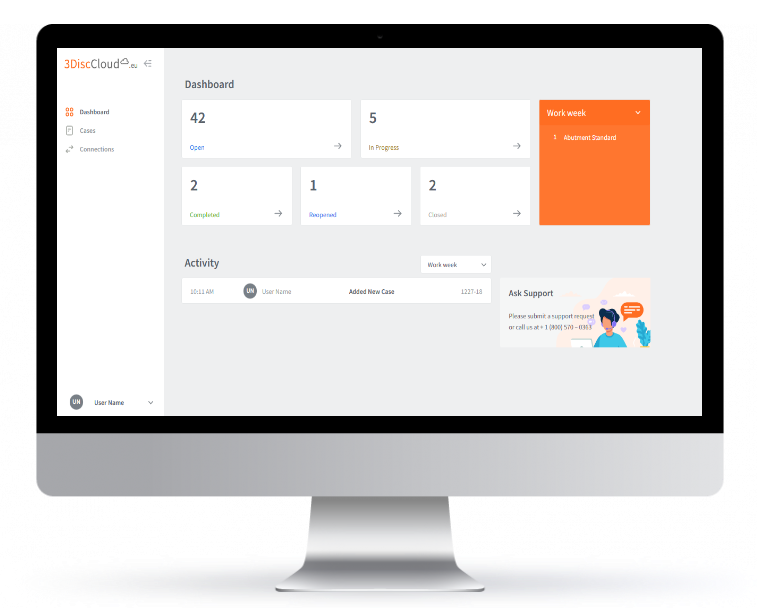
The 3DiscCloud™ Dashboard provides an at-a-glance overview of activity and options associated with your account.
The Dashboard enables users to:
- View and access Cases at-a-glance based on status.
- View activity based on a selected display period.
- Access the Connections page.
- Access account settings: Groups, Personal Settings, User Profile, Login/out.
Selecting a period of activity
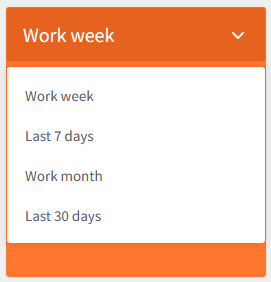
You can select to display different periods of activity in the 3DiscCloud™ Dashboard:
Displaying Cases in 3DiscCloud™
Cases sent to 3DiscCloud™ by a Dental Clinic are displayed in the Cases page:
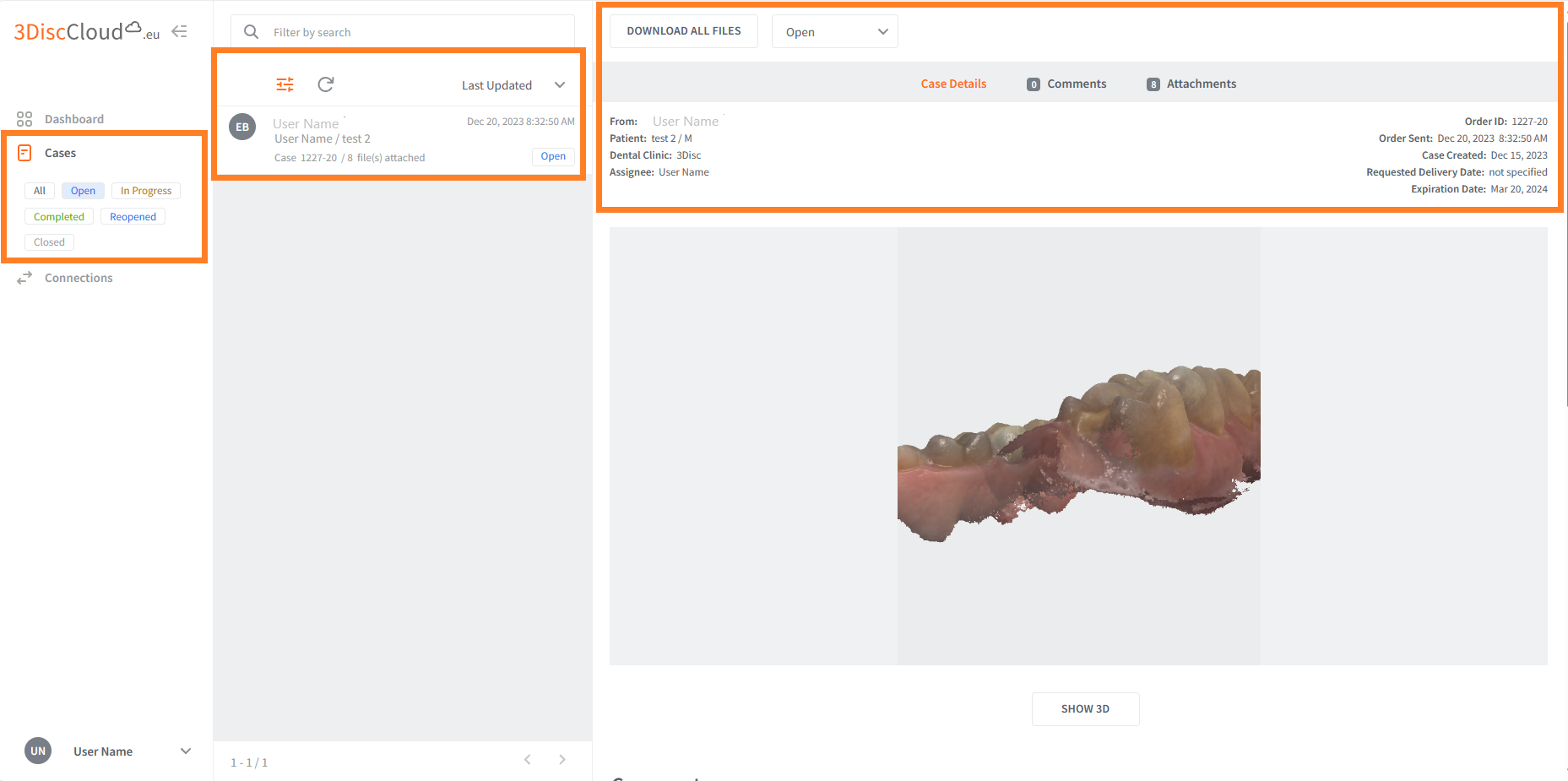
- To select cases by Status, click on one or more status in the Status bar.
- Click again to deselect a status.
Filtering Cases
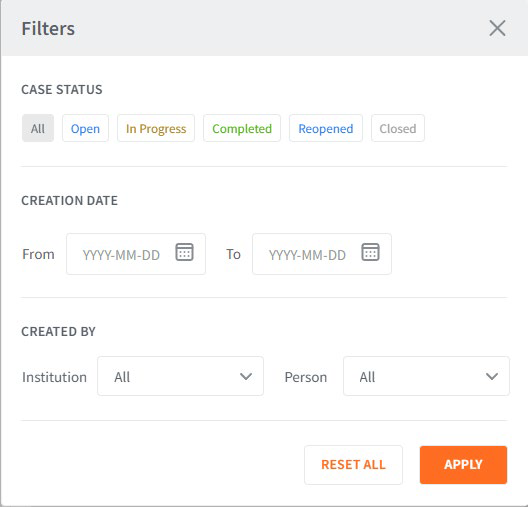
You can filter Cases by:
- Status
- Date Order Sent (Date Range)
- Institution/Person
Procedure
-
Step 1. Click the Filter icon, and in the Filters dialog box select the desired filter details.
Hold the SHIFT key to select more than one Status. -
Step 2. Click Apply to apply the filter, or Cancel to cancel any modifications made to the filter.
An active filter is indicated in orange:

To remove an active filter:
- Step 3. Click on the active filter icon.
- Step 4. In the Filters dialog box, click Reset All and Apply.
The deactivated filter icon is displayed in gray.
Case Display Options
The following Case Display Options are available:
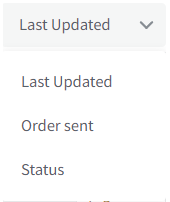
Case Status Permissions
The following case status are available in 3DiscCloud™ :
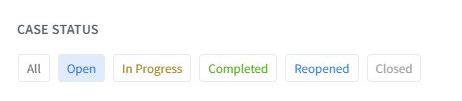
- Depending on whether your profile is a Clinic or Lab, different permissions are accorded:
| Status | Description | Managed by |
|---|---|---|
| Open | Case uploaded by Clinic to 3DiscCloud | Clinic |
| In Progress | Case being processed by Lab (case status modified by lab) | Lab |
| Completed | Case treated and completed by Lab (case status modified by lab) | Lab |
| Reopened | Case closed and reopened. (case status modified by Clinic) | Clinic |
| Closed | Case closed. (case status modified by Clinic) | Clinic |
3DiscCloud™ Case Details
Uploaded Cases are displayed in 3DiscCloud™ Cases page:
- In the Cases tab, click on a case to diplay details:
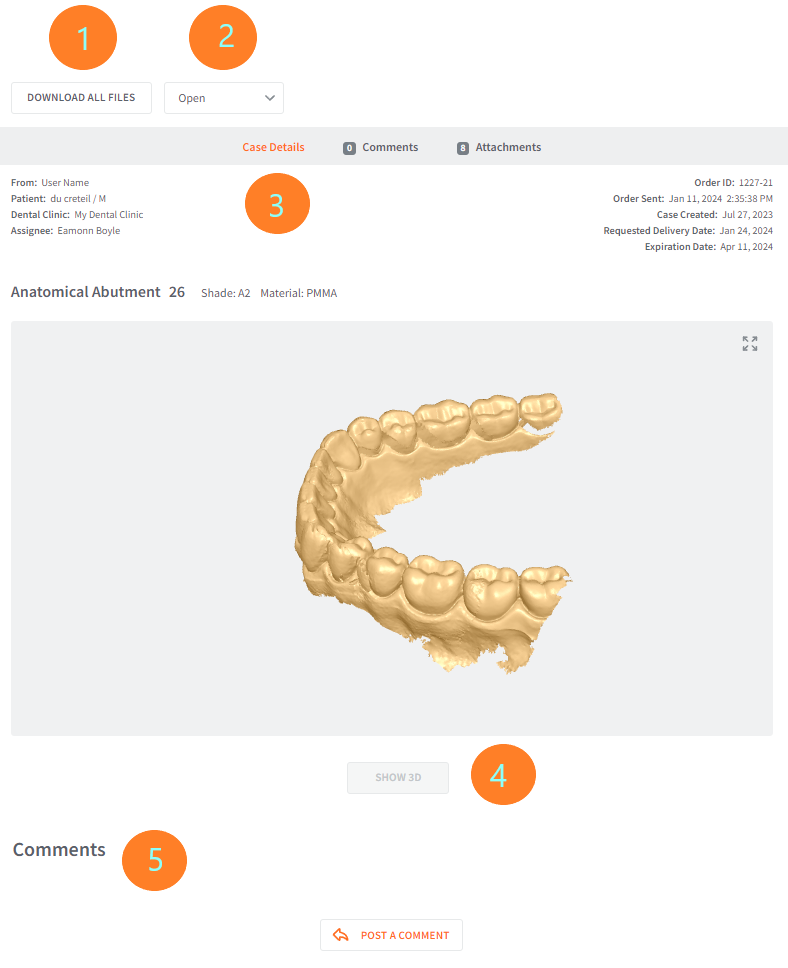
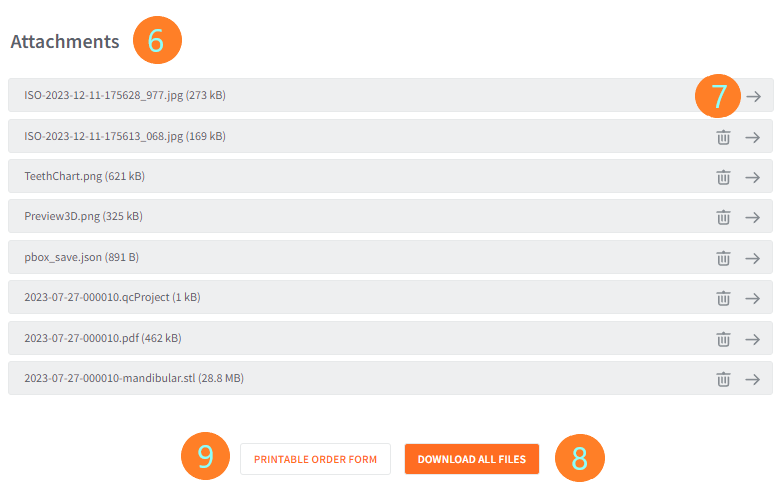
| No. | Case Information | Description |
|---|---|---|
| 1 | Download All Files | Download all files associated with case. |
| 2 | Case Status | Change Case Status Permissions above. |
| 3 | Case Details | Clinic, Lab and Case details: User Name (sender), Patient (if not anonymized), Clinic/Lab name, Assignee (to who case is sent), Order ID, Date order sent, Date case created, Requested delivery date, Expiration date for order (3 months after sent). |
| 4 | Show 3D | Click to display 3D Model |
| 5 | Comments | Comments added by User or Assignee (Comments can be added in 3DiscCloud™ or 3DiscClinic™ ) |
| 6 | Attachments | List of file attachments associated with case. |
| 7 | Delete/Download File | Click to download a specific file. |
| 8 | Download All Files | Click to download all files associated with case. |
| 9 | Printable Order Form | Click to display or download the order form associated with the case. |