![3DISC_Logo_RGB_tiny.png]](https://help.3disc.com/hs-fs/hubfs/3DISC_Logo_RGB_tiny.png?height=50&name=3DISC_Logo_RGB_tiny.png)
Using the Trim Tool

After scanning, you can use the Trim tool in the Live Scan Tool menu to trim the 3D model and remove any unwanted data.
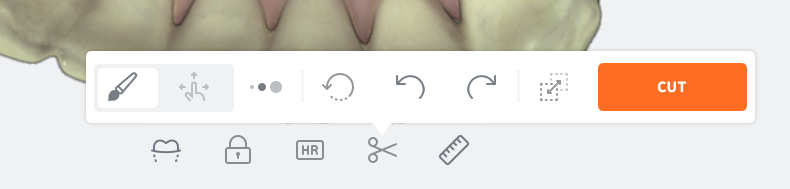
To use the Trim tool:
- Click on the Trim icon in the Live Scan Tools menu.
- Select the Trim brush size.
- Click on the Navigation icon of the Trim | Navigation toggle button.
- Using the Navigation tool, Left-Click+Drag to position the 3D digital model.
- Click on the Trim icon of the Trim | Navigation toggle button.
- Left-Click+Drag to select the surface area to be removed.
- Click on the Cut button to remove the unwanted mesh data.
- Click OK to Confirm Trim Operation.
IMPORTANT: Trimmed data cannot be recovered!