![3DISC_Logo_RGB_tiny.png]](https://help.3disc.com/hs-fs/hubfs/3DISC_Logo_RGB_tiny.png?height=50&name=3DISC_Logo_RGB_tiny.png)
User Settings
Customizing the 3DiscClinic™ Admin User Account
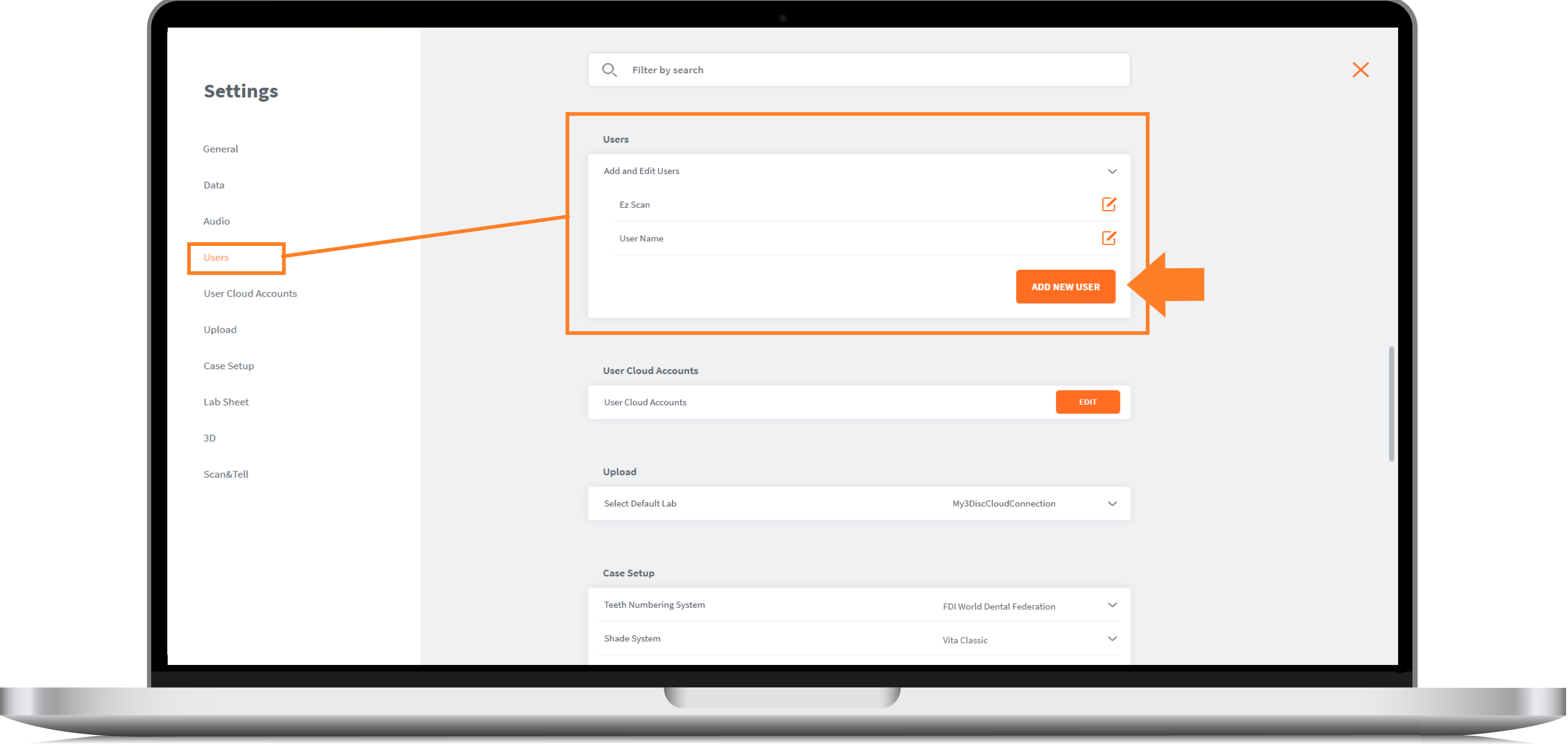
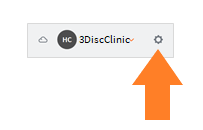
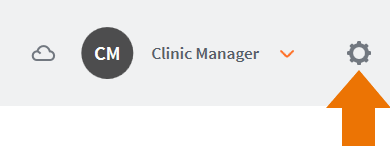
- 1. Click the System icon located in the top right-zoom-in corner of the Home Page, to access the Settings interface.
- 2. Select Users in the left-hand Settings menu, and click on Add and Edit Users.
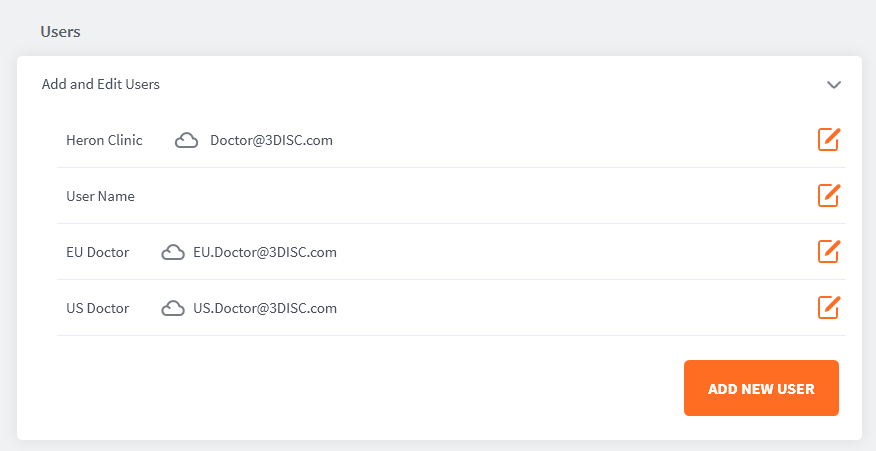
- 3. Select the default “3Disc Clinic” User profile, and click on the Edit icon to customize the Admin User account.

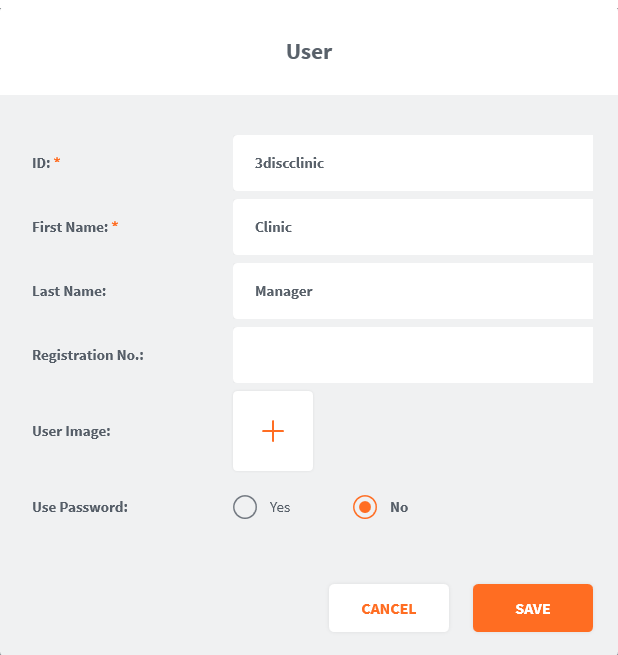
- 4. In the User Image field (optional), you can click to open the Picture dialog box, to add or take a User Photo.
Password Protecting your Account (recommended)
To password protect your User Account:
- 5. Select Yes in the Use Password field.
- 6. Enter and confirm the password to apply to this user account.
- 7. To apply changes, restart the 3DiscClinic™ application.
IMPORTANT: To protect the privacy of patient data processed by you, 3DISC strongly recommends password protecting all 3DiscClinic™ user accounts.
Connecting your user account to 3DiscCloud™
To connect your account to the 3DiscCloud™ platform:
- 1. Click the System icon ⚙️ located in the top right corner of the Home Page, to access Settings.
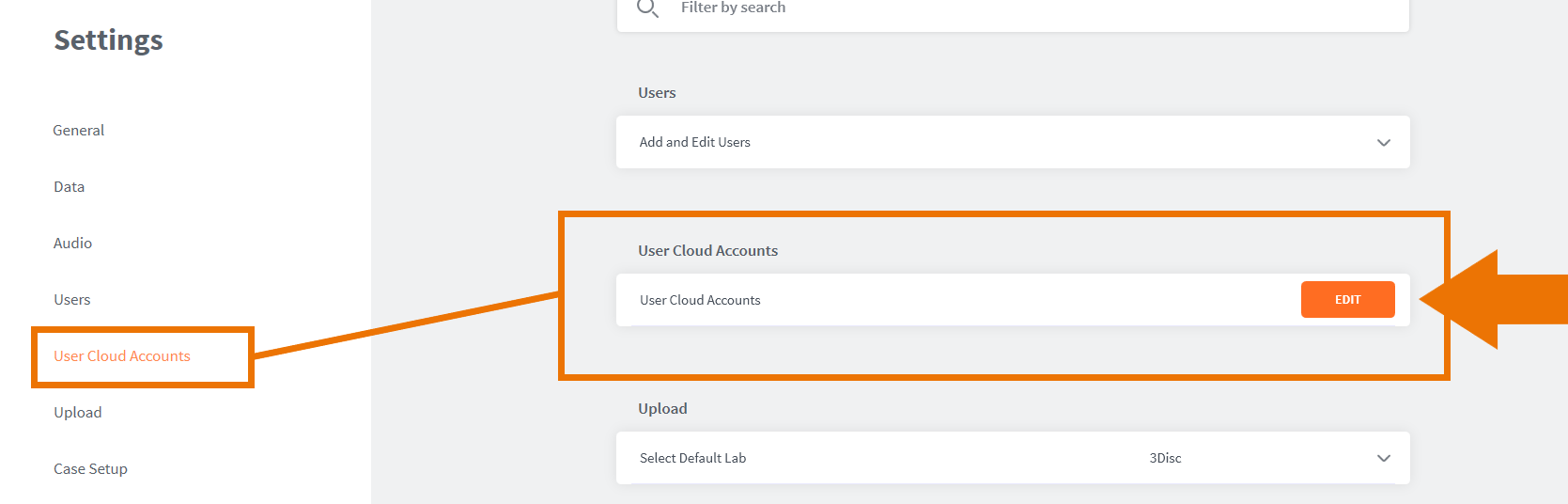
- 2. Select User Cloud Accounts in the left-hand Settings menu, and clickEdit
- 3. This opens the User Cloud Accounts dialog box:
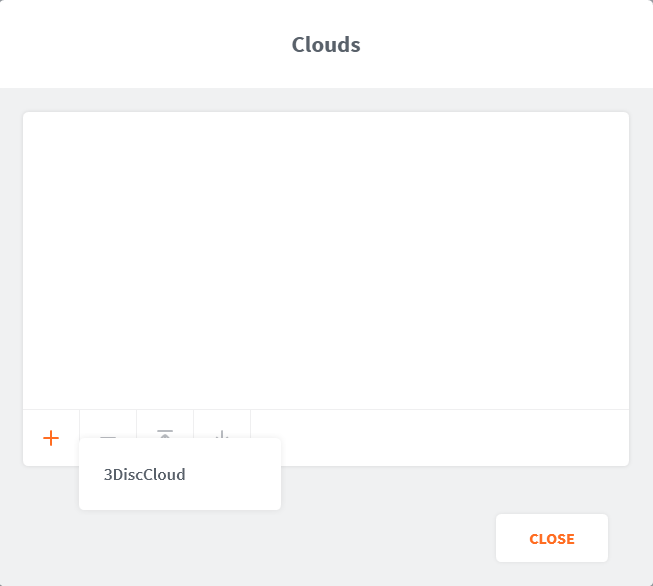
- 4. Click the + icon, and select the 3DiscCloud™ platform from the list.
-
For more information, go to 3DISC Partner Integrations
-
5. ClickApply
The 3DiscCloud™ Sign In page will display, inviting you to sign in or create a new account.
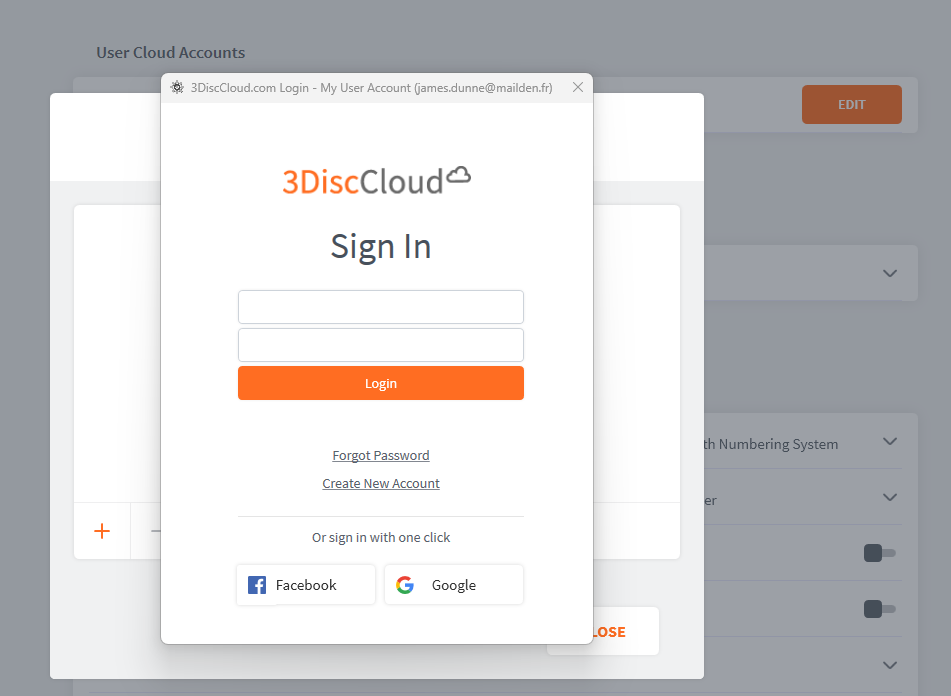
For information on Setting Up a 3DiscCloud™ account, visit: Communicating With Labs

Adding a New User Account
You can use the 3DiscClinic™ Admin User profile (CM) to add new User accounts.
To add a new User account:
-
3. Select Users in the left-hand Settings menu, and click on Add and Edit Users to expand the list of users.
-
4. In Add and Edit Users, click on:Add New User
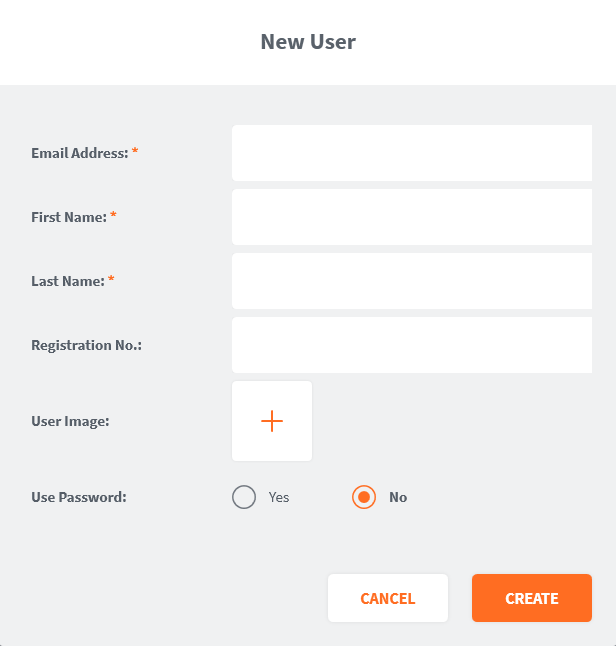
This opens the Add New User dialog box:
-
5. Enter User profile data: ID (email address), first name, last name, registration no. (optional) and photo (optional).
-
6. To apply changes, Click OK then close and restart the 3DiscClinic™ application.